
It is often very practical, or even necessary, to display multiple worksheets from the same workbook on screen at the same time:
- For example, when creating complex formulas that pull data from different sheets, you often need to switch back and forth between worksheets.
- Or when comparing data tables located in different sheets.
To compare several sheets simultaneously, without having to constantly switch between tabs, simply enable Excel’s multi-window mode by clicking the New Window button in the View tab on the ribbon:

This creates a new instance of the currently open workbook.
Each window instance is easily identifiable by the number that appears after the filename in the title bar (at the top of the Excel window).
You can then rearrange the windows so they are visible on the screen at the same time:
- Either manually using your mouse (if your windows are not maximized),
- Or by clicking the View Side by Side button.
Side by Side View
It’s possible to scroll both windows simultaneously.
To do this, simply click the Synchronous Scrolling button.

NOTE:
The Synchronous Scrolling feature is only available when Side by Side view is enabled.
If you adjust the size of a window and want to instantly go back to the previous layout from when you clicked View Side by Side, click the Reset Window Position button:

The Side by Side view is very convenient for comparing the content of two worksheets.
However, it is limited to displaying only two windows at the same time.
Automatic Window Arrangement
To display more than two windows at once, you’ll need to use another Excel feature:
Arrange All

This feature automatically arranges all open windows.
(To limit the arrangement to windows of the current workbook only, check Windows of active workbook.)
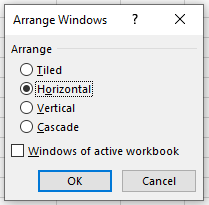
Here are the available layout options:
- Tiled: Uses all available screen space to display windows in a tiled layout (divided horizontally and vertically).
- Horizontal: Displays windows in horizontal rows.
Due to the large space taken up by the ribbon, this is the least practical layout.
As shown below, the interface may occupy the entire screen, leaving no room for worksheet content. - Vertical: Displays windows in vertical columns.
- Cascade: Displays windows almost maximized, one over the other in a cascading layout.