
When a chart is placed on a chart sheet, you can view it by clicking on its sheet tab. A chart sheet contains only a single chart (and no cells). Chart sheets and worksheets can be interspersed within a workbook.
To move an embedded chart to a chart sheet, click the chart to select it, then go to:
Chart Tools → Design → Location → Move Chart.
The Move Chart dialog box, shown in the figure, will appear. Select the New sheet option and assign a name to the chart sheet (or accept Excel’s default name). Click OK, and the chart is moved, and the new chart sheet becomes active.
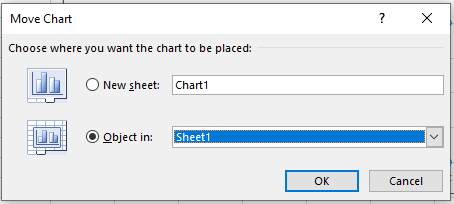
The Move Chart dialog box allows you to move a chart to a chart sheet.
NOTE:
This process also works in reverse: you can select a chart on a chart sheet and move it back to a worksheet as an embedded chart. In the Move Chart dialog box, choose Object in, then select the worksheet from the dropdown list.
When you place a chart on a chart sheet, it occupies the entire sheet.
If you plan to print a chart on a page by itself, using a chart sheet is often your best option.
If you have many charts, you can place each one on a separate chart sheet to avoid cluttering your worksheet.
This technique also makes it easier to locate a specific chart, as you can rename the sheet tabs to reflect the contents of each chart.