
In this article, we will learn how you can use dialog boxes to create user-friendly applications. You have the option to use the built-in dialog boxes (MsgBox and InputBox) in Excel—also known as common dialog boxes—or to create your own custom dialog boxes, called UserForms. In the previous two chapters, we displayed a message several times using the MsgBox function. However, the use of this function remained simple. Did you know that it is possible to modify the title, style, and buttons in the MsgBox function? We will also look at the function that allows you to retrieve information entered by the user.
MsgBox Dialog Box
The MsgBox function is one of the most useful VBA functions. Many examples in this chapter use this function to display the value of a variable. This function is often a good substitute for a simple custom dialog box. It is also an excellent debugging tool, as you can insert MsgBox functions at any time to pause your code and display the result of a calculation or assignment.
Most functions return a single value, which you assign to a variable. The MsgBox function not only returns a value but also displays a dialog box to which the user can respond. The value returned by the MsgBox function represents the user’s response to the dialog box. You can use the MsgBox function even if you are not interested in the user’s response but simply want to display a message.
The official syntax of the MsgBox function has five arguments (those in brackets are optional):
= MsgBox(prompt[, buttons][, title][, helpfile, context])
- prompt: This is a required argument that specifies the text displayed in the message box.
promptis a String argument, which means you must type your desired text; it can contain up to 1023 characters, although it is usually a good idea to be more concise. (Any prompt longer than 1023 characters is truncated without warning.) Line breaks are inserted by using the carriage returnvbCr, line feedvbLf, or both combinedvbCrLf.Reminder: the constantsvbCr,vbLf, andvbCrLfrepresent the following values respectively:Chr(13),Chr(10), andChr(13) + Chr(10).
| Constant | Equivalent | Description |
|---|---|---|
| vbCrLf | Chr(13) + Chr(10) | Combination of carriage return and line feed |
| vbCr | Chr(13) | Paragraph break character |
| vbLf | Chr(10) | Line break character |
- buttons: This optional argument controls the type of message box VBA displays by specifying the buttons it contains. For example, as you will see in a few pages, you can display a message box with just an OK button; with OK and Cancel; with Abort, Retry, and Ignore buttons; and so on. You can also add parameters to this argument to control the icon and modality of the message box.
- title: This optional argument controls the title bar of the message box. If you do not specify a title, VBA uses the application title: Microsoft Excel. In general, it is better to specify the title as the application name alone is not useful.
- helpfile: This optional argument controls the help file that VBA displays when the user presses F1 in the message box (or clicks the Help button in a message box with one).
- context: This optional argument controls the help topic in the help file. If you specify the
helpfileargument, you must also specifycontext.
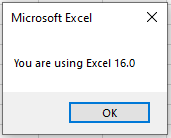
Values accepted by the buttons argument (second argument of MsgBox):
| Constant | Value | Description |
|---|---|---|
| vbOKOnly | 0 |  |
| vbOKCancel | 1 |  |
| vbAbortRetryIgnore | 2 |  |
| vbYesNoCancel | 3 |  |
| vbYesNo | 4 |  |
| vbRetryCancel | 5 |  |
| vbCritical | 16 |  |
| vbQuestion | 32 |  |
| vbExclamation | 48 |  |
| vbInformation | 64 |  |
| vbDefaultButton1 | 0 | Default button: Button 1 |
| vbDefaultButton2 | 256 | Default button: Button 2 |
| vbDefaultButton3 | 512 | Default button: Button 3 |
| vbApplicationModal | 0 | Forces the user to respond before continuing in Excel |
| vbSystemModal | 4096 | Forces the user to respond before continuing in other applications (topmost window) |
Note:
- First group (0 to 5): defines the number and type of buttons.
- Second group (16, 32, 48, 64): defines the icon style.
- Third group (0, 256, 512): sets the default button.
- Fourth group (0, 4096): sets the message box modality (usually not applicable in VBA).
You can only choose one value per group. The final value for the buttons argument will be the sum of one value from each group.
Example: For a MsgBox with Yes/No buttons (value 4), a Question icon (value 32), and the second default button (value 256), enter 292 (4 + 32 + 256).
Alternatively, use the expression vbYesNo + vbQuestion + vbDefaultButton2, which is more readable.
Return values from MsgBox buttons:
| Constant | Value | Corresponding Button |
|---|---|---|
| vbOK | 1 |  |
| vbCancel | 2 |  |
| vbAbort | 3 |  |
| vbRetry | 4 |  |
| vbIgnore | 5 |  |
| vbYes | 6 |  |
| vbNo | 7 |  |
Example: Delete a selected range using MsgBox
Sub DeleteSelectedRange()
    Dim i As Integer
    i = MsgBox("Do you want to delete the selected range?", _
               1 + vbQuestion, "Delete Request")
    If i = 2 Then Exit Sub
    Selection.Clear
End Sub
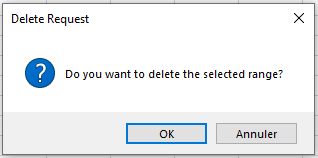
Comments:
- Variable
iis declared as Integer and assigned to the MsgBox dialog box. - The value of
iis used to determine which button the user clicked. - If Cancel is clicked, the macro exits. Otherwise, the selected range is cleared using the
Clearmethod.
Example: Display multiple pieces of information
Sub MultipleInfo()
    MsgBox _
    " Hello user " & Application.UserName & Chr(13) & _
    " Today is " & Date & Chr(13) & " Exactly " & _
    Time & " o'clock!", vbInformation, "Information"
End Sub
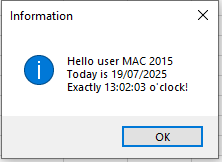
Comments:
- To display multiple lines, concatenate text segments using
&. - Use underscore
_at the end of a line to continue the command. Chr(13)is used to insert line breaks.
Macro: Check if a specific workbook exists
Sub FileExists()
    Dim s As String
    Const File = "C:\my files\myworkbook.xls"
    s = Dir(File)
    If s <> "" Then
        MsgBox "The file exists!", vbExclamation
    Else
        MsgBox "File " & File & " is not available here!", vbCritical
    End If
End Sub
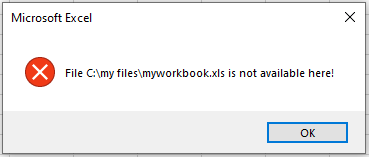
Comments:
- Use the
Dirfunction to check if a file exists. - If the file name is returned, it exists; otherwise, it doesn’t.
Using Text Boxes for Messages
If you run a long macro, inform the user that the macro is still running by displaying a temporary text box. This helps avoid the impression that Excel has crashed.
Private Sub Workbook_Open()
    ActiveSheet.OLEObjects.Add _
    (ClassType:="Forms.TextBox.1", _
    Left:=70, Top:=60, Width:=150, Height:=25).Activate
    ActiveSheet.OLEObjects _
    (ActiveSheet.OLEObjects.Count).Name = "Message"
    ActiveSheet.OLEObjects("Message").Object.Text = _
    " Please wait..."
    Application.Wait (Now + TimeValue("0:00:05"))
    ActiveSheet.OLEObjects("Message").Delete
End Sub
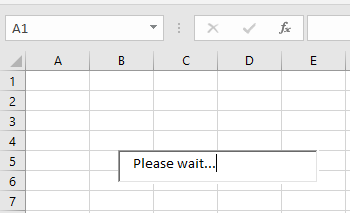
Comments:
OLEObjectsis the collection of all ActiveX/OLE controls.Addadds a textbox; specify ClassType like"Forms.TextBox.1".- Set position and size using
Left,Top,Width,Height. - Use
.Activateto activate and.Nameto rename. - Use
.Object.Textto set the message. - Use
.Deleteto remove the object after 5 seconds (Waitmethod).
| Control to Insert | Description |
|---|---|
| CheckBox | Forms.CheckBox.1 |
| ComboBox | Forms.ComboBox.1 |
| CommandButton | Forms.CommandButton.1 |
| Frame | Forms.Frame.1 |
| Image | Forms.Image.1 |
| Label | Forms.Label.1 |
| ListBox | Forms.ListBox.1 |
| MultiPage | Forms.MultiPage.1 |
| OptionButton | Forms.OptionButton.1 |
| ScrollBar | Forms.ScrollBar.1 |
| SpinButton | Forms.SpinButton.1 |
| TabStrip | Forms.TabStrip.1 |
| TextBox | Forms.TextBox.1 |
| ToggleButton | Forms.ToggleButton.1 |
InputBox Dialog Box
The InputBox function is a simple dialog that allows users to enter data (text, number, or a range).
= InputBox(prompt[, title][, default][, xpos][, ypos][, helpfile, context])
- prompt: Required; text shown in the input box (up to 1024 characters). Use
vbCrfor new lines. - title: Optional; title bar text. If omitted, defaults to Excel.
- default: Optional; pre-filled text in the input field.
- xpos, ypos: Optional; screen coordinates for box position.
- helpfile, context: Optional; link to Help topic.
Example: VAT Calculation
Sub CalculateVAT()
    Dim Amount As Double
    Dim Total As Double
    Const VAT = "1.1925"
    Amount = Application.InputBox("VAT Calculation", "Please enter the Amount")
    If Amount = 0 Then Exit Sub
    Total = Amount * VAT
    MsgBox "Sales tax is: " & Total - Amount & " Euros"
End Sub
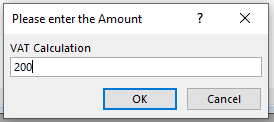
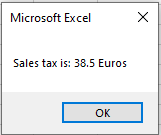
Comments:
- Define the VAT rate in a constant.
- Ask the user for an amount using InputBox.
- If Cancel is clicked, exit. Otherwise, compute and show VAT.
Example: Capture Multiple Entries
Sub CaptureMultipleEntries()
    Dim i As Long
    Dim i2 As Long
    For i2 = 1 To 5
        i = Application.InputBox(prompt:="Enter a number:", Type:=1)
        If i <> False Then
            Sheets("Sheet1").Cells(1, i2).Value = i
        Else: Exit Sub
        End If
    Next
End Sub
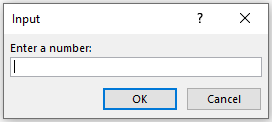
Comments:
- InputBox is called five times using a
For Nextloop. - If Cancel is clicked, the macro exits; otherwise, values are written to Sheet1.
Example: Select a Range of Cells
Sub SelectCellRange()
    Dim cellRange As Range
    On Error Resume Next
    Set cellRange = Application.InputBox(prompt:="Cell Range", Type:=8)
    If cellRange Is Nothing Then
        MsgBox "You did not select a cell range", vbExclamation
    Else
        cellRange.Select
    End If
End Sub
Comments:
- Declare a Range variable.
- Use Type:=8 to allow range selection.
- If no range selected, show a warning; otherwise, select it.
Example: Entering Functions via InputBox
Sub EnterFunction()
    Dim s As String
    s = InputBox("Enter the function", "Function", "=")
    If s = "" Then Exit Sub
    ActiveCell.FormulaLocal = s
End Sub
Comments:
- Default input is
=since all Excel functions begin with it. - Use
FormulaLocalto insert the function properly in the cell.