
There are many situations where you may need to create a new worksheet based on an existing one or move a sheet tab from one Excel file to another. For example, you may want to back up an important worksheet or create multiple copies of the same sheet for testing purposes. Fortunately, Excel provides a few simple and quick methods to duplicate worksheets.
Copy a Worksheet in Excel
Excel offers three built-in methods to duplicate worksheets. Depending on your preferred working style, you can use the ribbon, the mouse, or the keyboard.
Method 1: Copy the Worksheet by Dragging
Normally, you use drag-and-drop to move items from one place to another. But this method also works to copy worksheet tabs and is actually the fastest way to duplicate a sheet in Excel.
Simply click on the tab of the worksheet you want to copy, hold down the Ctrl key, and drag the tab to the desired location.
Method 2: Duplicate a Sheet Using Right-Click
Here’s another easy way to duplicate a sheet in Excel:
-
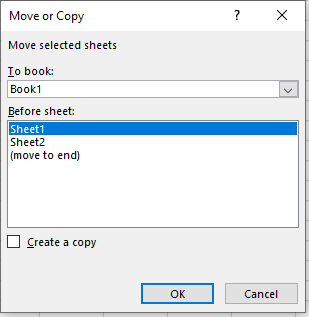
Right-click on the sheet tab and select Move or Copy from the context menu. This opens the Move or Copy dialog box.
-
Under Before sheet, choose where you want to place the copy.
-
Check the Create a copy box.
-
Click OK.
For example, this is how you can make a copy of Sheet1 and place it before Sheet3.
Method 3: Copy a Sheet Using the Ribbon
The Ribbon includes all Excel functionalities—you just need to know where to find them. To copy a sheet using the ribbon:
-
Go to the Home tab.
-
Click Format in the Cells group.
-
Select Move or Copy Sheet…
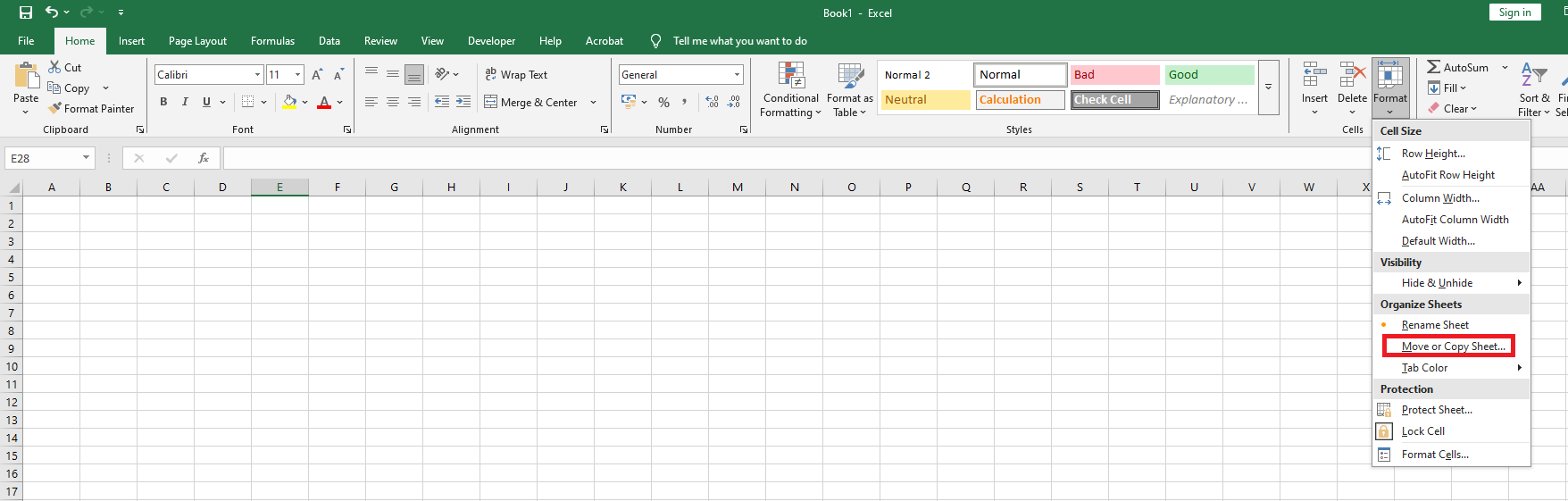
The Move or Copy dialog box appears. Follow the same steps as in the previous method.
Copy a Worksheet to Another Workbook
The most common way to copy a worksheet to another workbook is as follows:
-
Right-click the tab of the sheet you want to copy, then click Move or Copy…
-
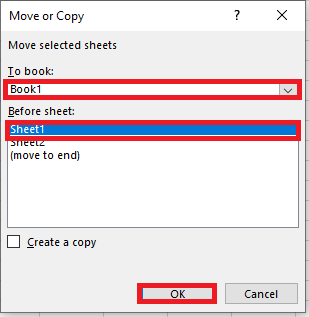
In the Move or Copy dialog box, do the following:
-
Under To book, select the target workbook. To place the copy in a new workbook, select (new book).
-
Under Before sheet, specify where to place the copied sheet.
-
Check the Create a copy box.
-
Click OK.
NOTE:
Excel only displays open workbooks in the To book drop-down list, so make sure to open the destination file before copying.
Aside from this traditional method, there is another way to achieve the same result.
Copy a Sheet to Another Workbook by Dragging
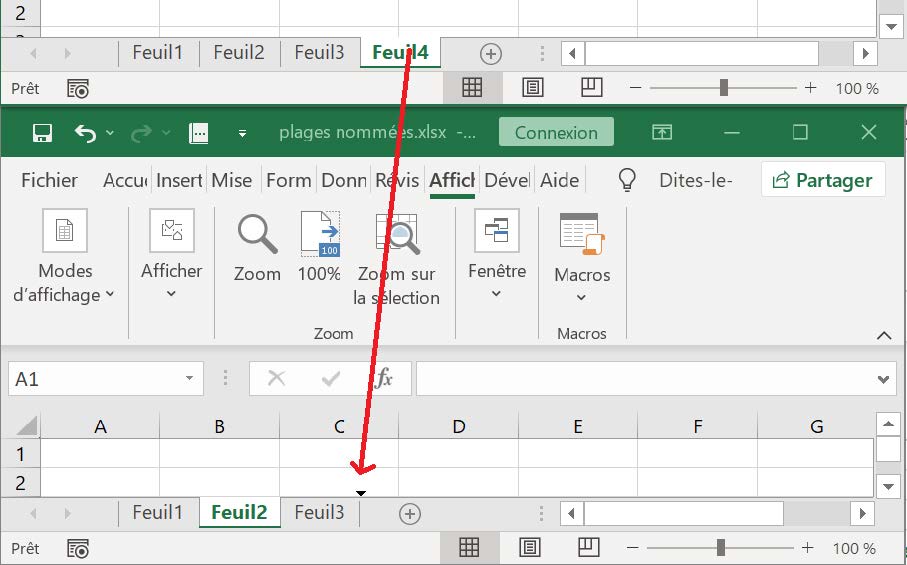
If Excel allows duplicating a sheet within the same workbook by dragging, why not try using this method to copy a sheet to another workbook? You just need to view both files at the same time. Here’s how:
-
Open both the source and target workbooks.
-
On the View tab, in the Window group, click View Side by Side. This arranges the two workbooks horizontally.
In the source workbook, click the sheet tab you want to copy, hold Ctrl, and drag the sheet into the target workbook.
Copy Multiple Sheets in Excel
All techniques that work to duplicate a single sheet can also be used to copy multiple sheets. The key is to select multiple worksheets. Here’s how:
-
To select adjacent sheets, click the first sheet tab, hold Shift, then click the last tab.
-
To select non-adjacent sheets, click the first sheet tab, hold Ctrl, and click the other tabs one by one.
With multiple sheets selected, do one of the following:
-
Right-click one of the selected tabs and choose Move or Copy.
-
Press Ctrl and drag the tabs to the desired location.
-
From the Home tab, click Format > Move or Copy Sheet.
Copy a Worksheet with Formulas
In most cases, copying a worksheet with formulas works the same as copying any other sheet. Formula references adjust automatically in a way that works well for most scenarios.
-
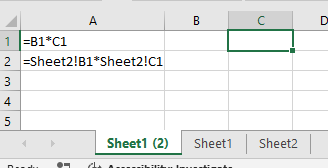
When copying a sheet within the same workbook, formulas refer to the copied sheet unless external references point to another sheet or file.
Before copying:=[Workbook1]Sheet2!B1*[Workbook1]Sheet2!C1
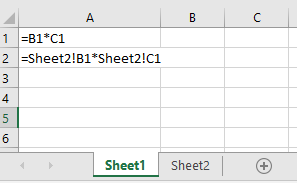
After copying:=Sheet2!B1*Sheet2!C1
-
When copying a worksheet to another workbook, formula references behave as follows:
-
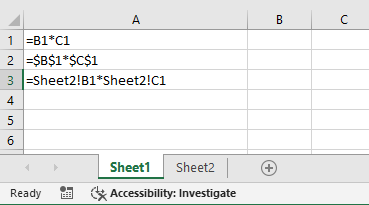
References within the same sheet (relative or absolute) point to the copied sheet in the target workbook.
-
References to other sheets in the original workbook still point to the original workbook.
You’ll notice this by the workbook name (e.g.,[Workbook1]) appearing in the formula.
-
To make copied formulas refer to a sheet with the same name in the new workbook, simply use Excel’s Replace All feature:
-
On the copied sheet, select all formulas you want to edit.
-
Press Ctrl + H to open the Replace tab of the Find and Replace dialog box.
-
In the Find what box, enter the name of the original workbook exactly as it appears (e.g.,
[Workbook1]). -
Leave the Replace with box empty.
-
Click Replace All.
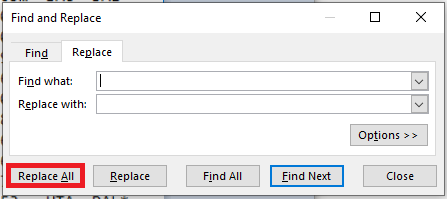
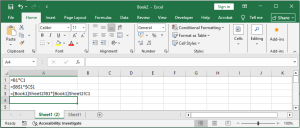
Result:
From=[Workbook1]Sheet2!B1*[Workbook1]Sheet2!C1
To=Sheet2!B1*Sheet2!C1
Copy Data from One Sheet to Another Using a Formula
If you don’t want to copy the entire sheet but only a portion of it, select the range of interest and press Ctrl + C to copy. Then switch to another sheet, select the top-left cell of the destination range, and press Ctrl + V to paste.
To ensure the copied data updates automatically when the original data changes, use formulas to reference another sheet.
For example, to copy data from cell A1 in Sheet1 to cell B1 in Sheet2, enter the following formula in B1:=Sheet1!A1
To copy data from another workbook, include the workbook name in brackets:=[Workbook1]Sheet1!A1
If needed, drag the formula down or across to extend the range.
Move Worksheets in Excel
Moving sheets in Excel is even easier than copying them and can be done using the same techniques.
Move a Sheet by Dragging
To move one or more sheets, simply select the tab(s) and drag them to a new location.
For example, here’s how to move Sheet1 and Sheet3 to the end of the workbook.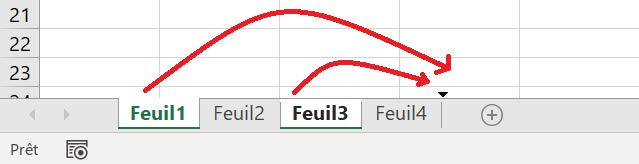
To move a sheet to another workbook, place the files side by side and drag the sheet from one file to the other.
Move a Sheet via the Move or Copy Dialog Box
Right-click the sheet tab and select Move or Copy, or go to the Home tab → Format → Move or Copy Sheet. Then:
-
To move a sheet within the same workbook, choose the target location under Before sheet, and click OK.
-
To move a sheet to another workbook, select the target workbook in the To book list, choose the sheet position, and click OK.
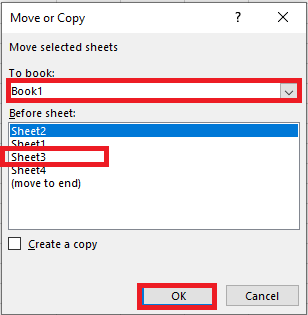
Note: If the target workbook already contains a sheet with the same name, Excel will add a number in parentheses to the end of the moved sheet’s name. For example, Sheet3 will become Sheet3 (2).
When Move or Copy Doesn’t Work
Normally, Microsoft Excel moves and copies sheets without issue. If a worksheet cannot be moved or copied, it may be due to the following reasons:
-
Excel Table in the Sheet
You cannot move or copy a group of sheets if one of them contains an Excel table. Each of these sheets must be handled individually. -
Protected Workbook
Moving or copying sheets is not allowed in protected workbooks. To check if the workbook is protected, go to the Review tab and look at the Protect Workbook button in the Protect group. If the button is highlighted, it means the workbook is protected. Click it to unlock the workbook, then move the sheets. -
Named Ranges Conflict
When copying or moving a sheet from one workbook to another, you may see an error message saying a name already exists. This means that both the source and target workbooks have a table or range with the same name.-
If it’s just one error, click Yes to use the existing name, or No to rename it.
-
If there are many conflicts, it’s better to review all names before copying.
To do so, press Ctrl + F3 to open the Name Manager in the active workbook—here you can edit or delete names as needed.
-