
After creating a formula in Excel, you can use the Copy and Paste commands to duplicate or move the formula to other areas of your worksheet.
When you copy formulas that contain cell references, Excel automatically adjusts those references relative to their new location—unless you specify otherwise.
Using Absolute and Relative Cell References
When you use cell references in your formulas, Excel uses the data stored in those locations for calculations.
The benefit is that if you change the source data, the formula result also updates.
If you copy a formula from one place to another, Excel adjusts the cell references based on the new location.
For example, the formula =B2*B3 entered in cell B5 would become =C2*C3 when copied to cell C5.
However, you can change a reference so that it always points to the original location.
An absolute cell reference remains fixed even when copied or moved.
A relative cell reference adjusts to its new location.
The dollar sign ($) is used to indicate that part of a reference should remain fixed.
Use the dollar sign to specify whether the row, column, or both should be locked.
Examples of Absolute and Relative References in Excel:
| Cell Reference | Meaning |
|---|---|
$A6 |
Column A stays fixed, row 6 adjusts |
A$6 |
Row 6 stays fixed, column A adjusts |
$A$6 |
Both column A and row 6 stay fixed |
A6 |
Both column and row adjust to the new position |
Making a Cell Reference Absolute in Excel
The following example shows how to make a cell reference absolute:
- Type
=in cell D5. - Point to cell B5, then press the F4 key on your keyboard.
Excel inserts dollar signs ($) in the reference to make it absolute. - Type
+, then point to cell C5. - Press Enter.
The resulting formula in cell D5 will now be:=$B$5+C5.
Copying Formulas with AutoFill
The AutoFill feature allows you to quickly copy a formula to adjacent cells.
Follow these steps to practice using AutoFill:
- Click in cell D5.
- On the Formulas tab, choose AutoSum.
Excel adds the values from the adjacent cells, which in this case are B5:C5.
Press Enter. - Click cell D5, then drag the AutoFill handle down to cell D9 and release.
Excel copies the formula from D5 and adjusts the cell references accordingly.
NOTE:
When you use a named range in a formula, Excel automatically treats the reference as absolute.
In other words, when you copy a formula that uses a named range, the reference does not change based on location.

The AutoFill feature allows you to quickly copy a formula into adjacent cells.
Copying Formulas with Copy and Paste
When you use the Copy command, Excel stores a copy of the selection in the clipboard, allowing you to paste the data multiple times.
Follow these steps to practice copying and pasting formulas:
- Click cell B10.
- On the Home tab, in the Clipboard group, click Copy.
- Select the range C10:D10.
- In the Clipboard group, click Paste.
Excel pastes the formula from cell B10 and adjusts the references accordingly.
Pasting Formula Results in Excel
With the Paste Values command, you can copy a formula and paste only its result into another cell.
Follow these steps to practice pasting formula results:
- Select cell H8 and choose Copy from the Home tab.
NOTE:
You can also press the Enter key to paste into a worksheet cell,
but doing so removes the item from the clipboard.
- Click cell I8, then on the Home tab, choose Paste and select Paste Special.
The Paste Special dialog box appears. - In the dialog box, select Values and click OK.
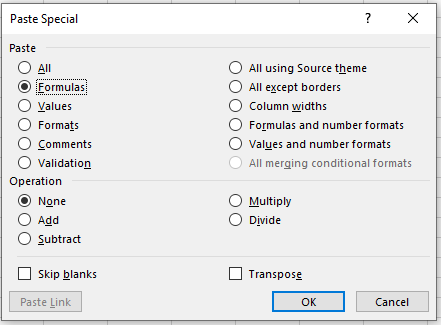
Paste the results of formulas into a separate cell.