
The following VBA procedure adds a new worksheet to the current workbook:
Sub CreateNewSheet()
    ThisWorkbook.Activate
    MsgBox Worksheets.Count
    Worksheets.Add
    ActiveSheet.Name = "New"
    MsgBox Worksheets.Count
End Sub
Explanation:
Activate the current workbook
Although not strictly required in all contexts, ThisWorkbook.Activate ensures that the macro is explicitly working within the workbook containing the macro itself — especially useful if multiple workbooks are open.
Display the initial number of worksheets
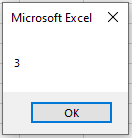
MsgBox Worksheets.Count
This line uses the Count property of the Worksheets collection to determine how many sheets currently exist in the workbook, then displays that number in a message box for control.
Add a new worksheet
Add
This line creates a new worksheet using the Add method. By default, the new sheet is inserted before the currently active sheet and becomes the new active sheet.
- Rename the newly created worksheet
- Name = « New »
After creation, the newly active sheet is renamed to « New » using the Name property.
- Display the updated number of worksheets
- MsgBox Worksheets.Count
The message box now confirms that the total number of worksheets has increased by 3.

Important Note:
If you run the CreateNewSheet() macro a second time, Excel will attempt to rename the new worksheet to « New » again. Since sheet names must be unique, this will result in a runtime error if a sheet named « New » already exists.
To avoid this, you can:
- Manually delete or rename the existing « New » sheet before running the macro again, or
- Add logic to the code to check for existing sheet names before renaming.