
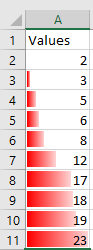
The following program illustrates the relative sizes of a series of numbers using data bars:
Sub CreateDataBars()
    Dim Rg As Range
    ThisWorkbook.Worksheets("Sheet6").Activate
    Set Rg = Range("A2:A11")
    ' Remove any existing conditional formats
    Rg.FormatConditions.Delete
    ' Add data bars conditional formatting
    Rg.FormatConditions.AddDatabar
    ' Modify the data bar color
    Rg.FormatConditions(1).BarColor.Color = vbRed
    Set Rg = Nothing
End Sub
Explanation:
Conditional formatting rules applied to a cell or a range are stored in the FormatConditions collection.
The Delete() method removes any existing conditional formats in the specified range.
The AddDatabar() method adds a data bar conditional formatting rule, which creates a bar inside each cell reflecting the relative value within the range.
Since this is the first conditional format applied, it is accessed by the index 1. Additional conditional formats could later be added and accessed by higher indices.
The color of the data bar is modified through the BarColor.Color property.
Figure shows the resulting data bars visualization.