
If you often need to print large and complex Excel worksheets, then you’ve likely encountered this issue. While you can easily scroll through the document from top to bottom without losing sight of the column headers because the header row is frozen, when printing the document, the top row is only printed on the first page.
If you’re tired of flipping through printed pages to find out what kind of data each column or row contains, this section provides the solution.
Repeat Excel Header Rows on Every Page
Your Excel document turns out to be long and you need to print it. You go to Print Preview and notice that only the first page has column headers at the top. You can specify the page setup options to repeat the top row on every printed page.
- Open the worksheet you’re going to print.
- Go to the Page Layout tab.
- Click Print Titles in the Page Setup group.
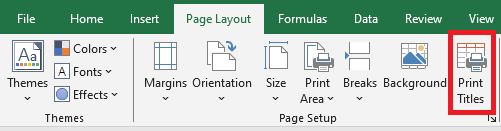
- Make sure you are on the Sheet tab in the Page Setup dialog box.
- Look for the Rows to repeat at top field under the Print Titles section.
- Click the Collapse Dialog icon next to the “Rows to repeat at top” field.
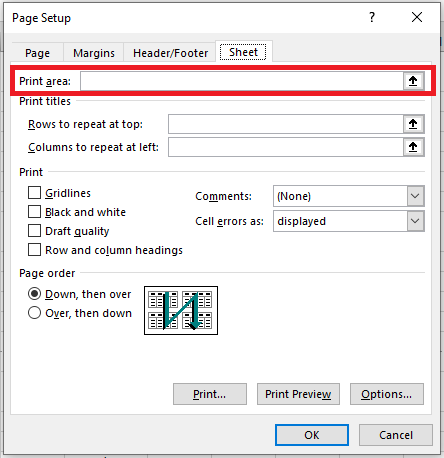
The Page Setup dialog box collapses and returns you to the worksheet. You’ll notice the cursor turns into a black arrow, which makes it easy to select an entire row with a single click.

- Select one or more rows that you want to print at the top of every page.
To select multiple rows, click the first row, hold the mouse button, and drag to the last row you want to include.
- Press Enter or click the Collapse Dialog button again to return to the Page Setup dialog.

Now, your selection appears in the Rows to repeat at top field.
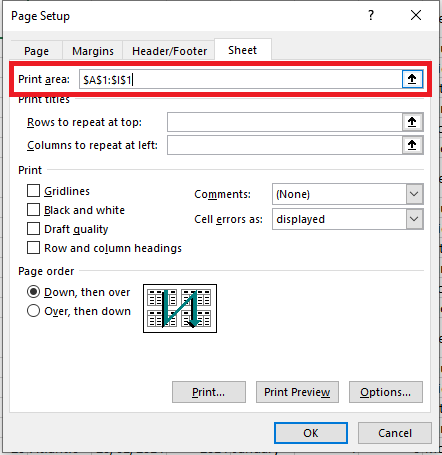
You can skip steps 6 to 8 and manually enter the range using the keyboard. Be careful to use absolute references (with the dollar sign $). For example, to repeat the first row on every page, type: $1:$1.
- Click Print Preview to view the result.
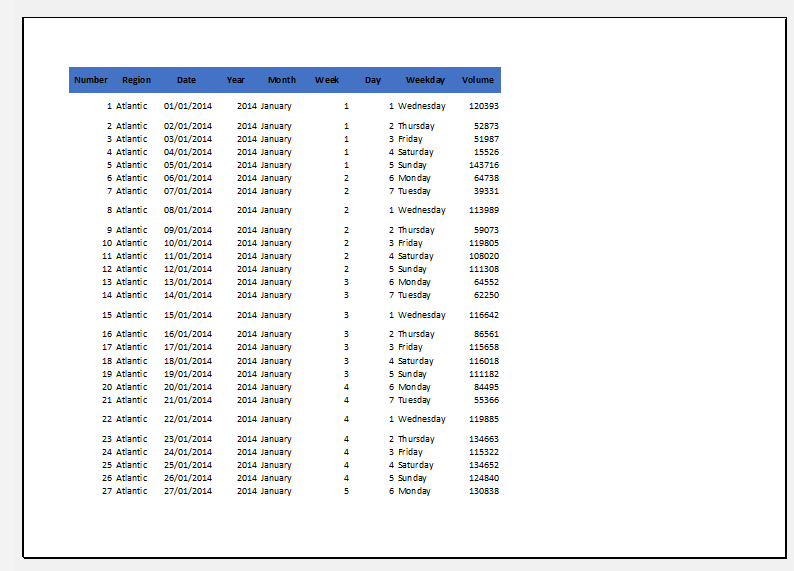 Repeat Header Columns on Every Printed Page
When your worksheet is too wide, the header column appears only on the left side of the first printed page. To make your document more readable, follow the steps below to print the row header column on the left side of every page:
- Open the worksheet you want to print.
- Follow steps 2 to 4 from the previous section (Repeat header rows).
- Click the Collapse Dialog button next to the Columns to repeat at left field.
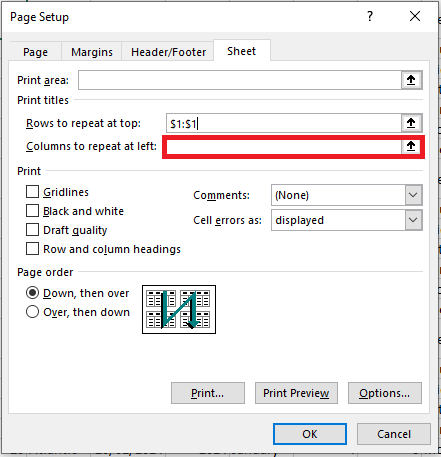
- Select one or more columns that you want to repeat on every printed page.

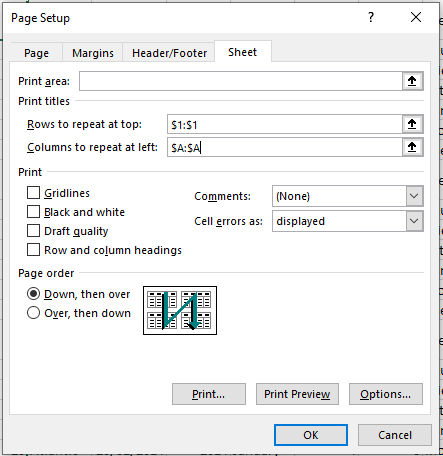
- Press Enter or click the Collapse Dialog button again to confirm that the selected range appears in the Columns to repeat at left field.
- Click Print Preview in the Page Setup dialog box to preview your document before printing.

Now, you won’t have to flip pages to figure out the meaning of each row’s values.
Print Row Numbers and Column Letters
Excel normally refers to worksheet columns by letters (A, B, C) and rows by numbers (1, 2, 3). These letters and numbers are called row and column headers. Unlike row and column titles, which are only printed on the first page by default, headers are not printed at all.
If you want to see these letters and numbers on your printed pages, follow these steps:
- Open the worksheet you want to print with row and column headers.
- Go to the Sheet Options group on the Page Layout tab.
- Check the box Print under Headings.
 If the Page Setup dialog box is already open on the Sheet tab, simply check the box Row and column headings under the Print section.
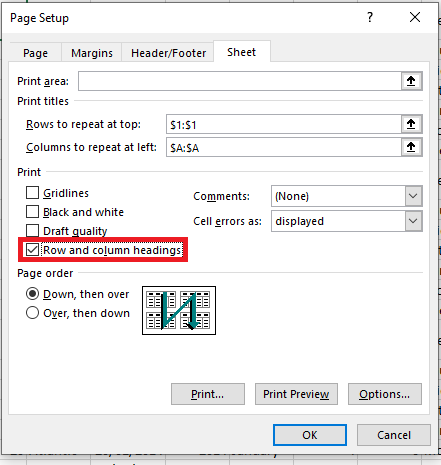
This will make the row and column headers visible on every printed page.
- Open the Print Preview pane (File > Print or Ctrl + F2) to verify the changes.
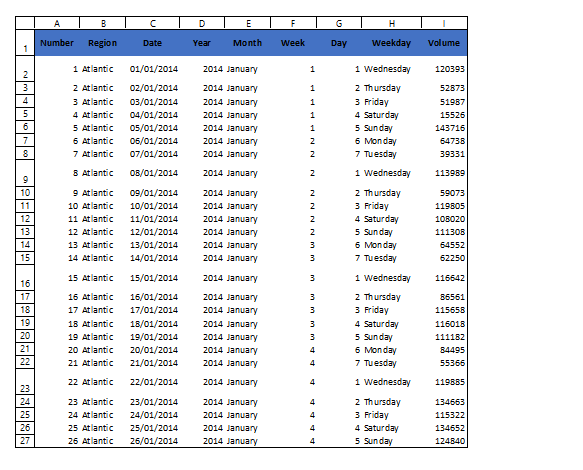
The Print Titles command can really simplify your work. Printing row and column headers on each page makes it easier to understand the information in your document. You won’t get lost in the printouts if every page includes the appropriate row and column titles. Try it — and you’ll appreciate the difference!