
When the number of loop iterations is unknown or cannot be calculated before the loop starts, use the Do-Loop loop. There are five variations:
- Do While … Loop: Checks the loop continuation condition at the beginning (pre-test loop).
- Do … Loop While: Checks the loop continuation condition at the end (post-test loop).
- Do Until … Loop: Checks the loop exit condition at the beginning.
- Do … Loop Until: Checks the loop exit condition at the end.
- Do … Loop: No automatic condition check; requires branching and Exit Do inside to avoid infinite loops.
Loops that check the condition at the end (Do … Loop While and Do … Loop Until) are called post-test loops and always execute at least once. In contrast, loops that check the condition at the start (Do While … Loop and Do Until … Loop) are pre-test loops and may not execute at all if the condition is false at the outset.
General Syntax:
Do {While | Until} condition
    [statements]
    [Exit Do]
    [statements]
Loop
or
Do
    [statements]
    [Exit Do]
    [statements]
Loop {While | Until} condition
Examples
The following three procedures demonstrate three of the five variations. They sum random numbers until the total reaches 5. Since numbers are generated randomly, the number of loop iterations is unpredictable.
Example 1: Do Loop While
Sub DoLoop1()
    Dim i As Integer
    Dim sum As Single
    ThisWorkbook.Worksheets("Sheet2").Activate
    Range("C1:C20").Clear
    Randomize
    i = 1
    sum = 0
    Do
        sum = sum + Rnd
        Cells(i, 3).NumberFormatLocal = "0.000"
        Cells(i, 3).Value = sum
        i = i + 1
    Loop While sum < 5
    Cells(i, 3).Value = "Done"
End Sub
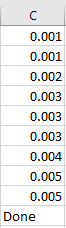
Explanation:
- The output range is cleared initially.
- The random number generator is initialized by Randomize.
- i tracks the output row number.
- sum is initialized to zero for clarity (good practice).
- In each loop iteration, a random number between 0 and 1 is added to sum.
- The new sum is output, and the row number increments.
- The loop continues while sum < 5. When sum >= 5, the loop ends and « Done » is printed.
Example 2: Do Loop Until
Sub DoLoop2()
    Dim i As Integer
    Dim sum As Single
    ThisWorkbook.Worksheets("Sheet1").Activate
    Range("C1:C20").Clear
    Randomize
    i = 1
    sum = 0
    Do
        sum = sum + Rnd
        Cells(i, 3).NumberFormatLocal = "0.000"
        Cells(i, 3).Value = sum
        i = i + 1
    Loop Until sum >= 5
    Cells(i, 3).Value = "Done"
End Sub
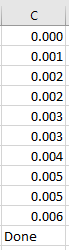
Explanation:
- Same as the first example, but the loop condition is tested after the loop body with Loop Until.
- The loop ends when sum >= 5.
Example 3: Do Loop with Exit Do
Sub DoLoop3()
    Dim i As Integer
    Dim sum As Integer
    ThisWorkbook.Worksheets("Sheet1").Activate
    Range("C1:C20").Clear
    Randomize
    i = 1
    sum = 0
    Do
        sum = sum + Int(Rnd * 6 + 1) ' Random integer 1 to 6, like a dice roll
        Cells(i, 3).Value = sum
        i = i + 1
        If sum >= 30 Then Exit Do
    Loop
    Cells(i, 3).Value = "Done"
End Sub
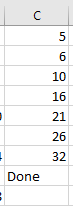
Explanation:
- This example generates random integers from 1 to 6 using Int(Rnd * 6 + 1).
- The loop exits immediately if sum >= 30 using Exit Do.
- This approach shows how to control the loop internally without a condition in the Loop statement.
Additional Notes
- The Rnd() function generates pseudo-random numbers between 0 (inclusive) and 1 (exclusive).
- Multiplying Rnd() by 6 and adding 1 scales this to 1 to less than 7, and Int() truncates to an integer 1 through 6.
- Randomize seeds the random number generator to avoid repeating sequences on each run.