
The following VBA procedure shows how to insert numbers, dates, percentages, and formulas into specific cells on the worksheet named « Sheet2 ».
Note: Depending on your Excel setup, this sheet may not exist by default. If necessary, create it manually before running the code.
VBA Example: Assigning Values and Formulas
Sub ValuesAndFormulas()
    ThisWorkbook.Worksheets("Sheet2").Activate
    ' Numeric values
    Range("A1").Value = 5.8
    Range("A2").Value = 1629.9
    Range("A3").Formula = "=SUM(A1:A2)" ' English formula
    ' Date values
    Range("A4").Value = "2020/03/31"
    Range("A5").Value = "2019/11/10"
    Range("A6").Formula = "=A4-A5" ' Difference in days
    ' Percentage value
    Range("A7").Value = 0.125
End Sub
Explanation of the Procedure:
Activating the Worksheet:
The code starts by activating « Sheet2 » to make sure that the operations apply to the correct sheet.
Inserting Numeric Values:
Range(« A1 »).Value = 5.8
Range(« A2 »).Value = 1629.9
-
- These lines insert decimal numbers into cells A1 and A2.
- When assigning decimals in VBA, use a period (.) as the decimal separator regardless of your regional Excel settings.
Inserting a Formula (Localized Version):
Range(« A3 »).FormulaLocal = « =SUMME(A1:A2) »
-
- This line adds a formula in cell A3 to sum the values in A1 and A2.
- FormulaLocal is used so the formula can be written in the local language (German in this case). The result of the formula appears in the cell, and the formula remains visible in the formula bar.
Inserting Date Values:
Range(« A4 »).Value = « 2020/03/31 »
Range(« A5 »).Value = « 2019/11/10 »
-
- Dates are input as text strings. Use double quotation marks around each date.
- It’s recommended to use the US-style format (YYYY/MM/DD) for dates, as this is reliably recognized by VBA and avoids localization issues.
- Excel will automatically interpret and format these as dates.
Calculating Date Difference:
Range(« A6 »).FormulaLocal = « =A4-A5 »
-
- This formula computes the difference in days between the two dates in A4 and A5.
- The result will be a numerical value representing the number of days between those dates.
Inserting a Percentage or Decimal Value:
Range(« A7 »).Value = 0.125
-
- This inserts a decimal number into A7, which can be formatted as a percentage in Excel (e.g., 12.5%) depending on cell formatting.
Result Overview:
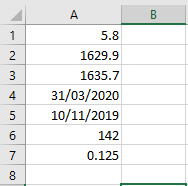
After running this procedure (as shown in the referenced Figure 2.24):
- Cells A1 and A2 contain numeric values.
- A3 contains a formula that calculates their sum.
- A4 and A5 contain dates.
- A6 calculates the number of days between the two dates.
- A7 holds a decimal number (which could be used for percentages or ratios).