In your Excel workbooks, data is not always structured the way you need. Often, you may want to split the content of one cell into multiple cells—or do the opposite: combine data from two or more columns into one.
Common examples that require concatenation in Excel include combining names and address parts, merging text with formula-based values, and formatting dates and times as desired, to name just a few.
The Excel CONCATENATE function joins up to 30 values together and returns the result as a single text string. Its syntax is:
=CONCATENATE(text1, text2, [text3], ...)
- text1 – The first text value to join.
- text2 – The second text value to join.
- text3 – (optional) The third text value to join.
The values can be cell references or hardcoded text strings. Only the first argument is required, and the values are concatenated in the order they appear.
For example, to concatenate the values in cells A1 and B1, separated by a space, you can use CONCATENATE as follows:
=CONCATENATE(A1, " ", B1)
The result of this formula is the same as using the ampersand (&) operator manually like this:
= A1 & " " & B1 // manual concatenation
The ampersand character (&) is an alternative to the CONCATENATE function. The result is the same, but the ampersand is more flexible and creates shorter (and arguably more readable) formulas.
Join Text Strings
One of the most basic text manipulation tasks you can perform is joining text strings. In the example shown in the figure below, you create a full name column by joining first and last names.
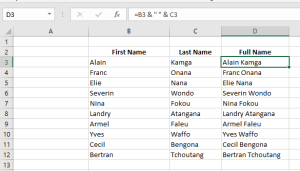
This example uses the ampersand operator (&). The ampersand tells Excel to concatenate the values together. As shown in the figure, you can combine cell values with any custom text. In this case, values in cells B3 and C3 are joined with a space between them (entered as " " in quotes).
Note:
Excel also offers a CONCATENATE function that joins values without using the ampersand. In this example, you could also write:
=CONCATENATE(B3, " ", C3)
Use the SUBSTITUTE Function to Combine and Separate Columns
The ampersand (&) operator is commonly used to combine multiple columns into a single one.
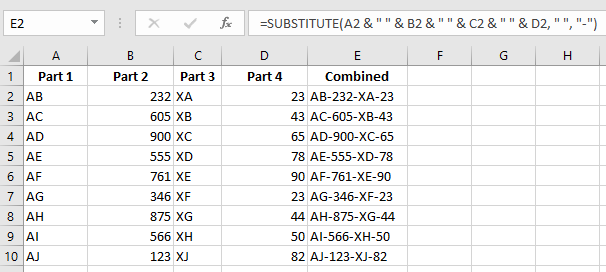
To include a separator between the parts (instead of just blank spaces), you can define the separator once and use the SUBSTITUTE function as follows:
To combine and separate at the same time:
- Enter any type of data in columns A through D.
- Select cells F2:F10 and enter the following formula:
=SUBSTITUTE(A2 & " " & B2 & " " & C2 & " " & D2, " ", "-")
- Press Ctrl + Enter.