
The following VBA procedure shows how to apply borders to various cell ranges, either completely or partially:

Sub ZellformatRahmen()
    ThisWorkbook.Worksheets("Tabelle2").Activate
    Range("E2:E3").Borders.LineStyle = xlDouble
    Range("E2:E3").Borders.Weight = xlThick
    Range("E2:E3").Borders.Color = vbGreen
    Range("E4:E6").Borders(xlEdgeLeft).Weight = xlThin
    Range("E4:E6").Borders(xlEdgeRight).Weight = xlThin
    Range("E4:E6").Borders(xlInsideHorizontal).Weight = xlHairline
End Sub
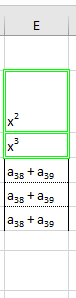
Explanation:
General Use of .Borders
The Borders property allows you to format the borders of a range in Excel. If you use Borders without a specific parameter (i.e., Range(…).Borders), the formatting will apply to all sides of the selected cell range — top, bottom, left, right, and all internal lines.
Targeting Specific Borders
To style only specific borders of a cell or range, you can specify one of the following border constants inside the Borders() method:
- xlEdgeLeft: Left border
- xlEdgeRight: Right border
- xlEdgeTop: Top border
- xlEdgeBottom: Bottom border
- xlInsideHorizontal: Inner horizontal lines (between rows)
- xlInsideVertical: Inner vertical lines (between columns)
If you only want to style the outer frame of a range, you must use constants beginning with xlEdge.
Styling Borders
You can modify different aspects of a border using the following properties:
- LineStyle – Defines the type of line used for the border:
- xlContinuous: solid line
- xlDot: dotted line
- xlDash: dashed line
- xlDouble: double line
- Others include xlDashDot, xlSlantDashDot, etc.
- Weight – Specifies the thickness of the border line. Accepted constants (from the xlBorderWeight enumeration):
- xlHairline: very thin line
- xlThin: thin line
- xlMedium: medium line
- xlThick: thick line
- Color – Determines the color of the border:
- Use predefined color constants like vbGreen, vbRed, vbBlue, etc.
- Or use the RGB() function for custom colors, e.g., RGB(255, 0, 0) for red.
Summary of What the Code Does:
- Activates the worksheet named « Tabelle2 ».
- Adds a double green thick border around the cells in E2:E3.
- For the range E4:E6, it adds:
- A thin left border (xlEdgeLeft)
- A thin right border (xlEdgeRight)
- And very thin horizontal lines (xlHairline) between the rows (xlInsideHorizontal)