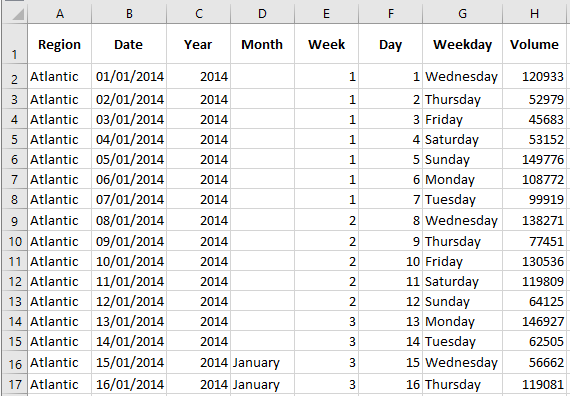
Sometimes, it can be useful to hide columns or rows in Excel.
Hiding Columns and Rows
To hide a column, follow these steps:
- Select a column.

- Right-click, then click Hide.
Result:
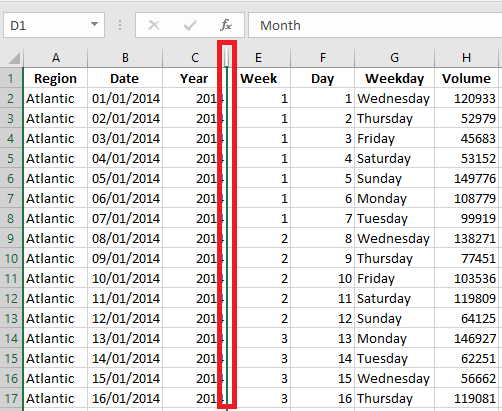
To hide a row, select the row, right-click, then click Hide.
Displaying Columns and Rows
To unhide a column, follow these steps:
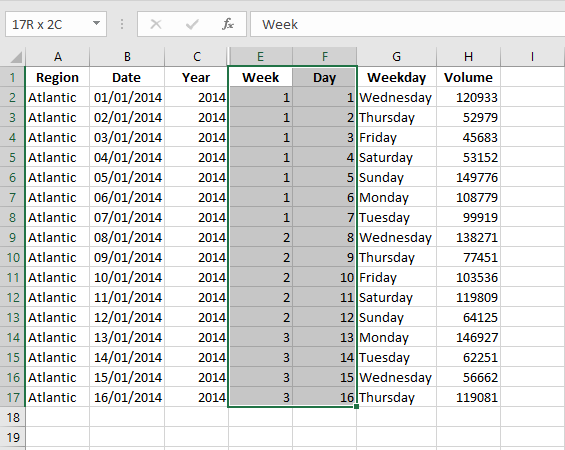
- Select the columns on either side of the hidden column.
- Right-click, then click Unhide.
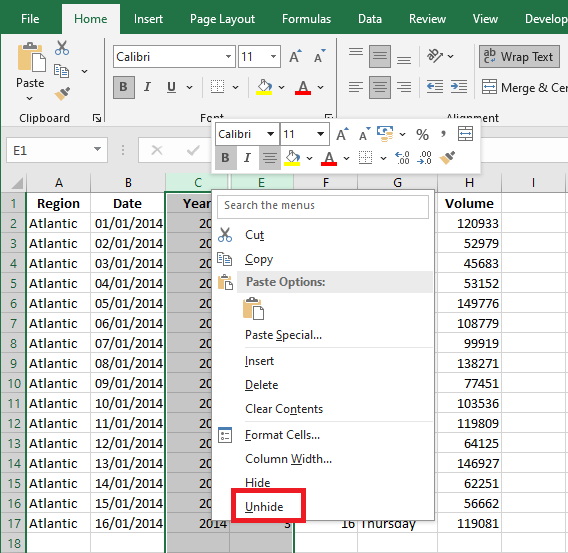
Result:
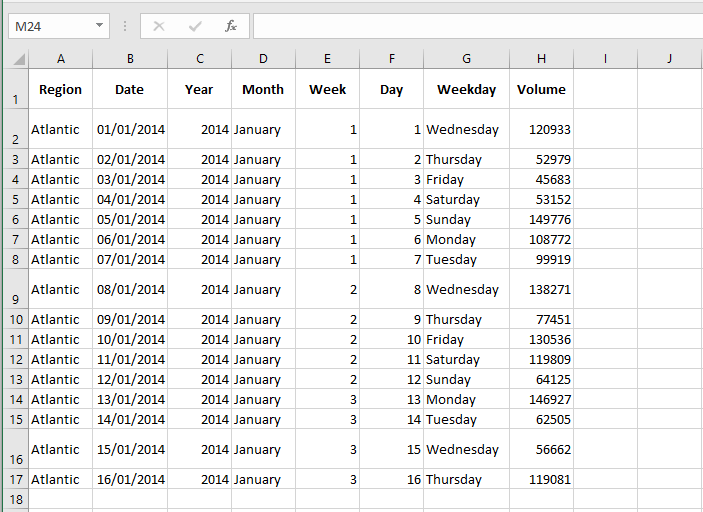
To unhide a row, select the rows on either side of the hidden row, right-click, then click Unhide.
Multiple Columns or Rows
To hide multiple columns, follow these steps:
- Select multiple columns by clicking and dragging over the column headers.
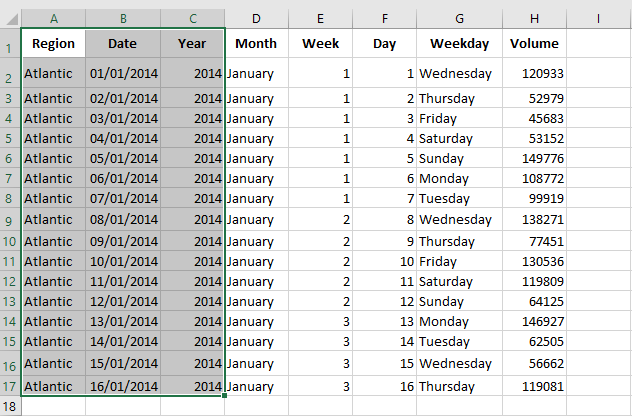
- To select non-adjacent columns, hold down Ctrl while clicking on the column headers.
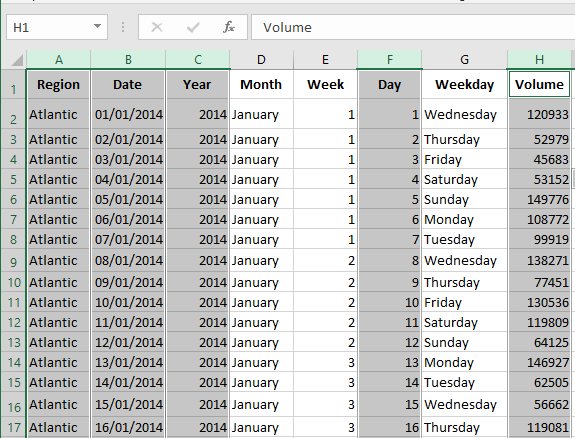
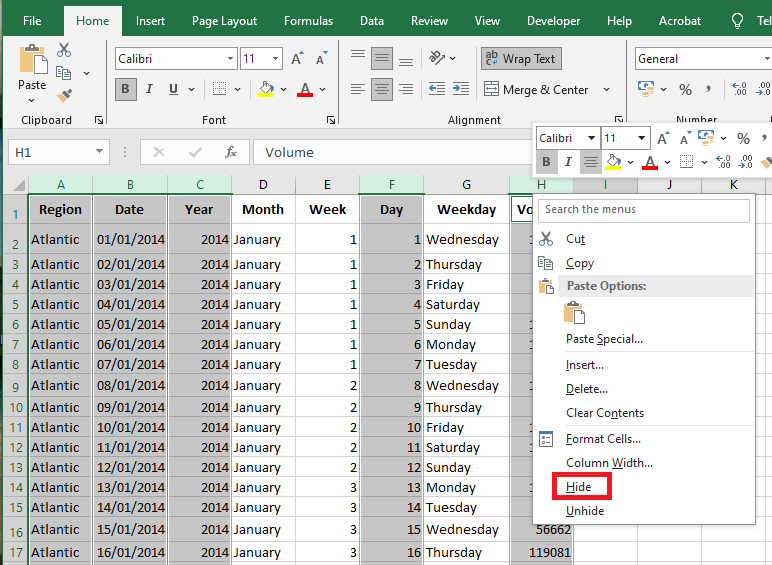
- Right-click, then click Hide.
Result:
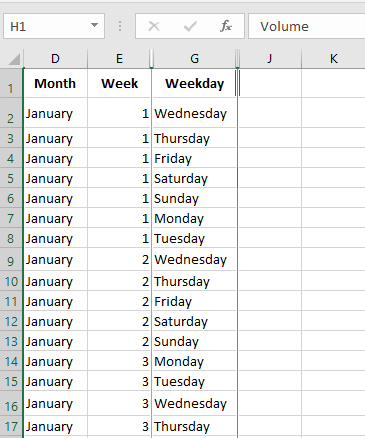
- To unhide all columns, follow these steps:
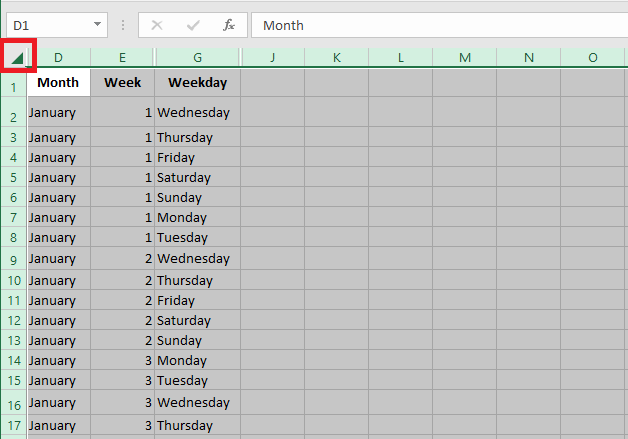
Select all columns by clicking the Select All button.
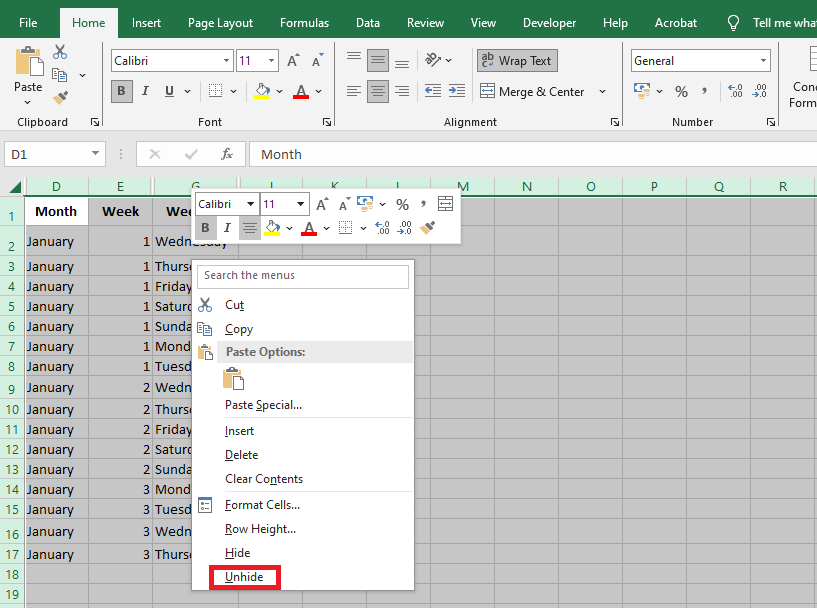
Right-click on any column header, then click Unhide.
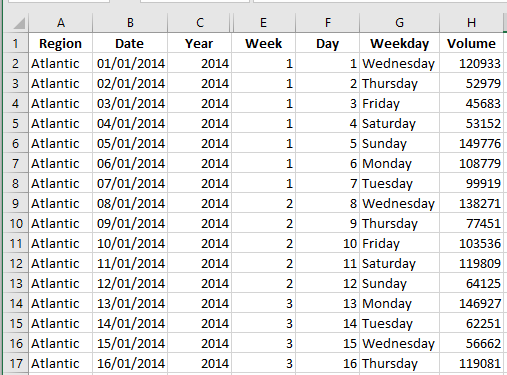
Result:
Tips and Tricks for Hiding and Displaying Rows
As you’ve just seen, hiding and unhiding rows in Excel is simple and quick. However, in some situations, even a simple task can become tricky. Below are simple solutions to a few common issues.
Hiding Rows Containing Blank Cells
To hide rows containing blank cells, proceed as follows:
- Select the range that contains the blank cells you want to hide.
- On the Home tab, in the Editing group, click Find & Select > Go To Special.
- In the Go To Special dialog box, select Blanks and click OK. This will select all the blank cells in the range.
- On the Home tab, in the Cells group, select Format > Hide & Unhide > Hide Rows to hide the rows that contain blank cells.
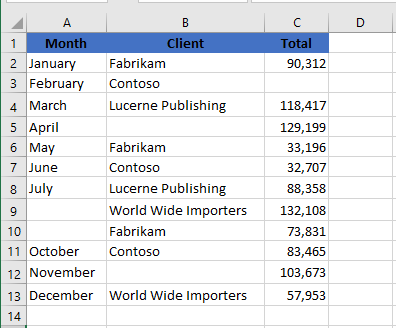
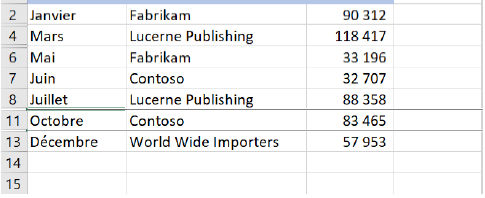
This method works well when you want to hide all rows containing at least one blank cell, as shown in the screenshot below:
Result:
Locating All Hidden Rows in a Sheet
If your worksheet contains hundreds or thousands of rows, it can be difficult to detect which ones are hidden. The following trick makes it easy:
- On the Home tab, in the Editing group, click Find & Select > Go To Special.
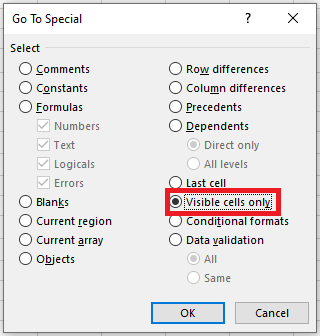
- In the Go To Special window, select Visible cells only and click OK.
This will select all visible cells and mark the rows adjacent to hidden rows with a white border.
Copying Visible Rows in Excel
Suppose you’ve hidden a few irrelevant rows and now want to copy only the relevant visible data into another sheet or workbook. How would you proceed?
If you select the visible rows with the mouse and press Ctrl + C, the hidden rows will also be copied!
To copy only visible rows in Excel, do the following:
- Select the visible rows using the mouse.
- Go to the Home tab, in the Editing group, and click Find & Select > Go To Special.
- In the Go To Special window, select Visible cells only, then click OK. This will select only the visible rows as described in the previous tip.
- Press Ctrl + C to copy the selected rows.
- Press Ctrl + V to paste the visible rows.
Hiding and Displaying Columns Using a Button
To hide and unhide columns by clicking a button, follow these steps:
- Select one or more columns.
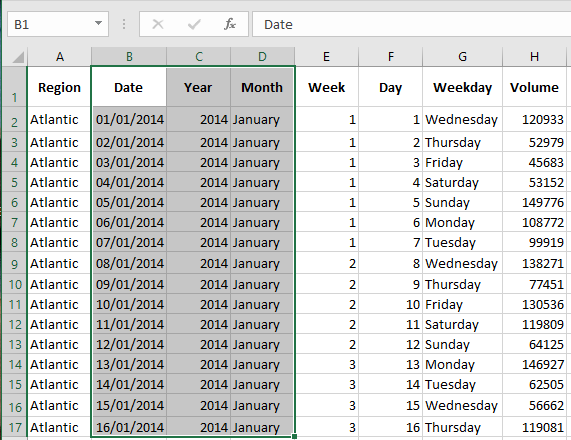
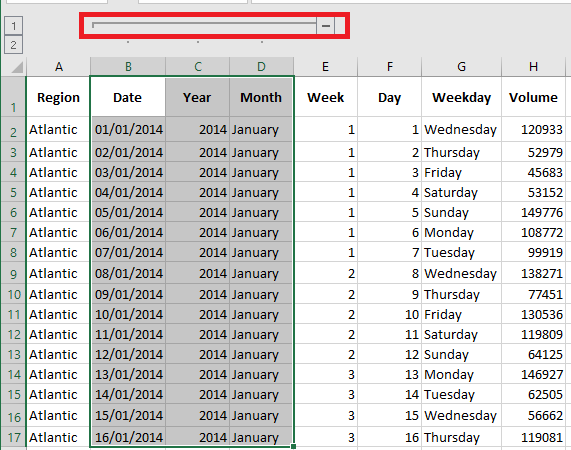
- On the Data tab, in the Outline group, click Group.

- To hide the columns, click the minus sign.
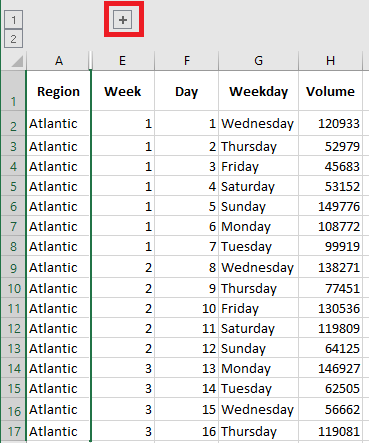
- To unhide the columns again, click the plus sign.
To ungroup the columns, first select them, then on the Data tab, in the Outline group, click Ungroup.
Hiding Cells
Finally, to hide cells in Excel, follow these steps:
- Select a range of cells.
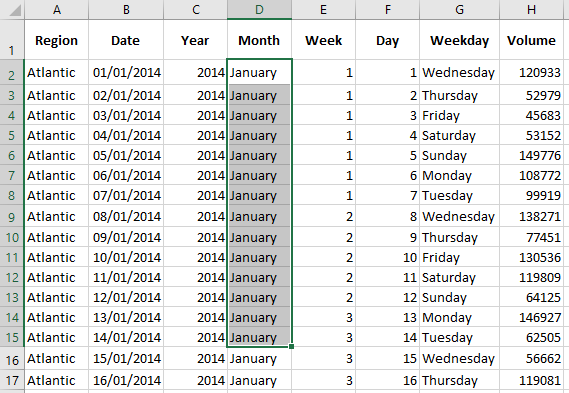
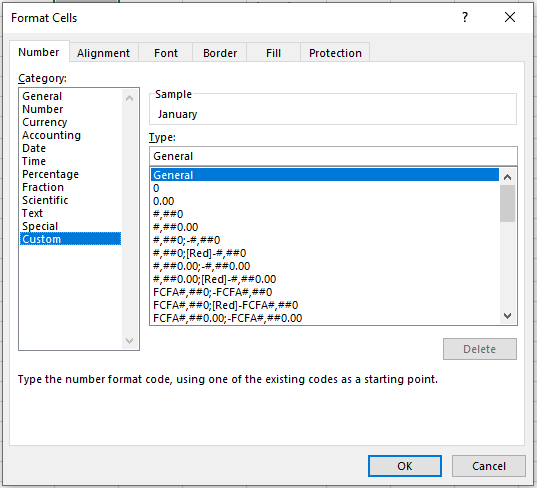
- Right-click, then click Format Cells. The Format Cells dialog box appears.
- Select Custom.
- Enter the following number format code:
;;; - Click OK.
Result: