
By default, Excel tables come with a wide range of built-in features, including predefined table styles that enhance readability and presentation. However, in certain scenarios, you may want to remove the table’s formatting while preserving its structure and functionality.
Remove Table Style Formatting Only
If your goal is to remove the default table style but keep the benefits of a functional Excel table (such as automatic expansion, structured references, and filter buttons), follow these steps:
-
Click on any cell within the table.
-
Go to the Table Design tab (or Design tab under older versions).
-
In the Table Styles group, click the very first style under the Light category, labeled None.
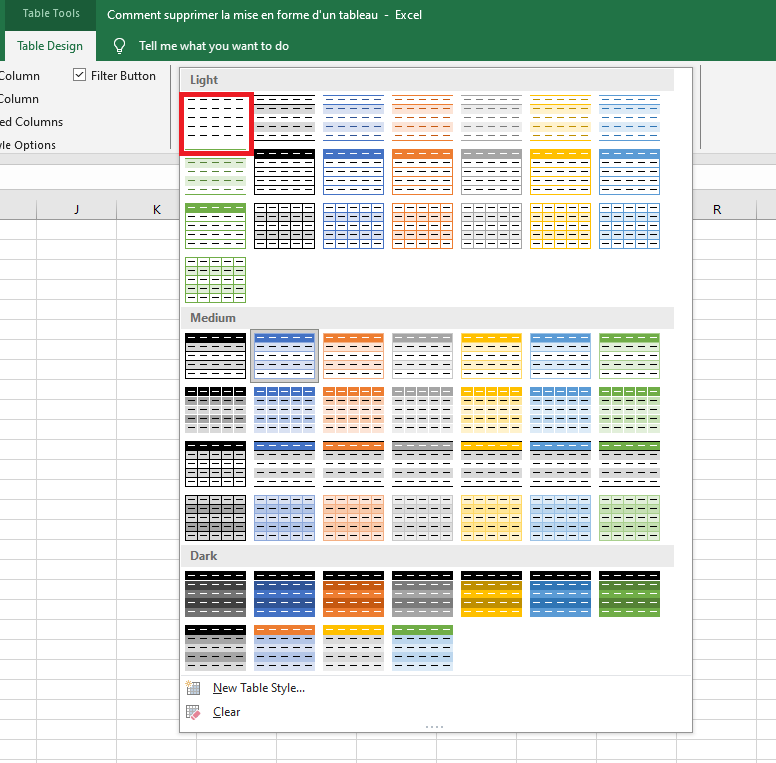
- Alternatively, click the dropdown arrow (the « More » button) in the Table Styles gallery, then click Clear at the bottom of the list.
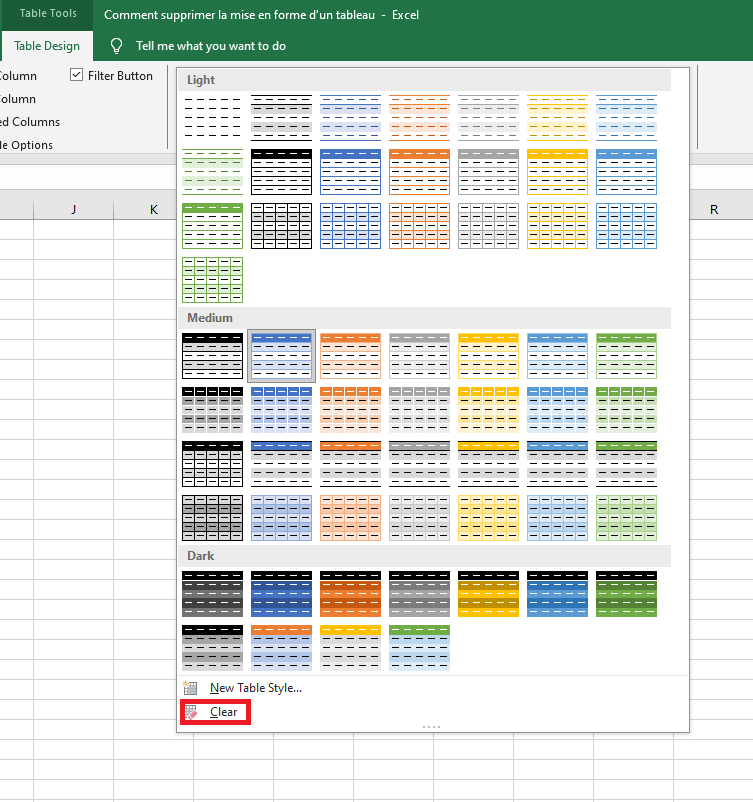
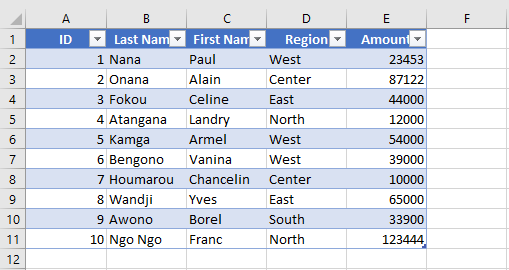
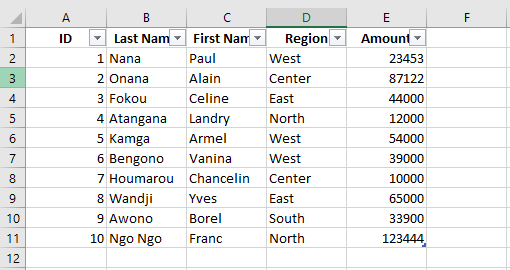
This will strip away the applied style, but your data will remain in a fully functional Excel table — just without the visual enhancements.
BEFORE
AFTER
-
These options only remove the built-in style formatting. Any custom formatting (such as fonts, colors, borders, etc.) that was manually applied will remain.
-
This method is especially useful when you want to leverage Excel table features but retain your existing cell formatting. Simply convert your data to a table, then clear the style to preserve your custom appearance.
-
To apply a new look, you can always choose another style from the table style gallery.
Clear All Formatting from a Table
If some formatting remains after clearing the table style — such as custom fills, fonts, or borders — it means that manual formatting was applied. To completely remove all formatting (both predefined and custom), do the following:
-
Click on any cell in the table.
-
Press Ctrl + A twice to select the entire table, including headers.
-
Navigate to the Home tab.
-
In the Editing group, click Clear → Clear Formats.

This action will remove all forms of formatting, including:
-
Table styles
-
Manually applied cell formatting
-
Number formats
-
Text alignment
-
Font colors and fills
Caution: This method will reset all formatting. Ensure you’re okay with losing number formats, alignments, and any other styling before proceeding.
BEFORE
AFTER