
Creates a cell reference as text from given row and column numbers.
Syntax:
ADDRESS(row_num; column_num; [abs_num]; [a1];[sheet_text])
Arguments:
- row_num (required):
- Row number (1 to 1,048,576 in modern Excel)
- column_num (required):
- Column number (1 to 16,384 in modern Excel)
- abs_num (optional): Reference type:
- 1 [Default]: Absolute ($A$1)
- 2: Absolute row, relative column (A$1)
- 3: Relative row, absolute column ($A1)
- 4: Relative (A1)
- a1 (optional):
- TRUE/1: A1-style (default)
- FALSE/0: R1C1-style
- sheet_text (optional):
- Worksheet name (e.g., « Sheet2 ») to prefix reference
Key Notes:
- Truncates decimal values in row/column numbers
- Doesn’t verify worksheet existence
- Returns text, not an actual reference (use with INDIRECT() for dynamic references)
Examples
- Basic References
| Formula | Result |
| =ADDRESS(6, 2) | $B$6 |
| =ADDRESS(6, 2, 4) | B6 |
| =ADDRESS(6, 2, 2) | B$6 |
| =ADDRESS(6, 2, , , « Sheet2 ») | Sheet2!$B$6 |
- Automatic Column Labels
=LEFT(ADDRESS(1, COLUMN()-COLUMN($C$14)+1, 4), 1)
- Generates letters (A, B, …) for columns starting at C14
- COLUMN() calculates current column position
- Dynamic Cell Access
=INDIRECT(ADDRESS(6, 2)) // Returns value from B6
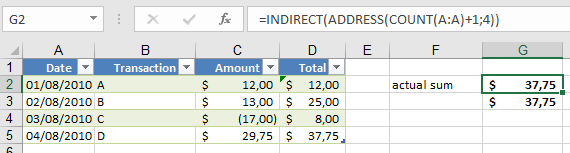
- Last Cell in Range
=INDIRECT(ADDRESS(COUNT(A:A)+1, 4))
- Finds last numeric entry in column A and returns value from column D
- For cross-sheet reference:
=INDIRECT(ADDRESS(COUNT(Payments!A:A)+1, 4,,, »Payments »))
Practical Applications
- Dynamic Headers:
Create self-updating column labels when columns are added/removed. - Summary Sheets:
Reference data from variable-length lists without manual updates. - Template Building:
Generate formulas that adapt to changing data structures. - Cross-Sheet References:
Programmatically create references to other worksheets.
Combination Techniques
- With MATCH()/INDEX():
=INDIRECT(ADDRESS(MATCH(« Total »,A:A,0), 2))
- With VLOOKUP():
=VLOOKUP(« Item », A:B, 2, 0) // Alternative to ADDRESS+INDIRECT
Limitations
- Reference strings may break if rows/columns are deleted
- Volatile when combined with INDIRECT()
- Consider INDEX() as a more stable alternative for many use cases