
This function returns the number of contiguous ranges within a reference.
Syntax:
AREAS (reference)
Arguments:
- reference (required): Must evaluate to a reference for one or more cell ranges. Otherwise, Excel returns an error (preventing formula entry) or an error value.
Background:
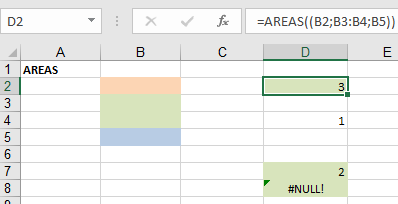
If the argument consists of multiple references separated by a comma, additional parentheses must be used:
=AREAS((A1;A2))
or
=AREAS((A1:A2;B3))
If additional parentheses are omitted, the comma is treated as a list separator, resulting in an error. Attempting to calculate empty ranges returns the #NULL! error (e.g., =AREAS(A1 A2)), as no intersection exists between A1 and A2.
Example:
This function is not commonly used in daily Excel tasks but can be helpful when:
- A dynamic list is named using the OFFSET() function.
- A list is formatted as a table.
Scenario:
Suppose you want to expand a list by adding cells below its title while ensuring it does not exceed 100 entries. If row 100 is reached, the title row should change color as an alert.
To count overlapping ranges between the named range List and cell A101, use:
=AREAS(List others!$A$101)
If the result is 1 (indicating an overlap), conditional formatting should change the title row’s colour. However, the Conditional Formatting dialog does not support intersection operations (spaces in cell references).
Workaround:
- Assign a name to the formula:
- In Excel: Formulas > Defined Names > Define Name.
- In Excel: Insert > Name > Define.
- Enter a reference name (e.g., Formula).
- Apply the conditional format to the title row using:
=(Formula=1)
and specify the desired colour.