
This function converts a numeric value into Thai text representation, appending the word « Baht » as a currency suffix.
Syntax:
BAHTTEXT(number)
Arguments:
- number (required):
The value to be converted. Can be:- A direct numeric input (e.g., 125.50)
- A cell reference containing a number
- A formula that returns a numeric value
Background:
Primary uses include:
- Generating tamper-resistant financial documents
- Creating formal contracts and checks
- Preventing numeric misinterpretation
Key characteristics:
- Exclusive to Thai language conversions
- No built-in English equivalent in Excel
- Available in all Excel versions but rarely used outside Thailand
Technical Notes:
- Conversion rules:
- Whole numbers: Returns Thai numerals + « Baht »
- Decimals: Converts satang (fractional baht) to text
- Negative values: Properly handles negative amounts
- Limitations:
- Only supports Thai language output
- Requires third-party add-ins for other languages
Examples:
- Basic conversion:
=BAHTTEXT(12) → Returns « สิบสองบาทถ้วน » (Twelve Baht) - Decimal amount:
=BAHTTEXT(125.50) → « หนึ่งร้อยยี่สิบห้าบาทห้าสิบสตางค์ » - Cell reference:
=BAHTTEXT(B5) where B5 contains 500
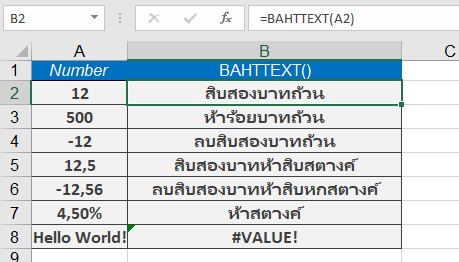
Note: While specialized for Thai financial documents, similar functionality for other languages requires custom solutions as described in Chapter 6 (Custom Functions).