
Its converts a binary number to its octal (base-8) equivalent.
Syntax
BIN2OCT(number; [places])
Arguments
- number (required)
- A 10-digit maximum binary number in two’s complement notation
- Negative values return a 10-digit octal number
- places (optional)
- Specifies minimum number of characters to display
- Adds leading zeros if necessary
- If omitted, shows only significant digits
- Decimal places are truncated
Background
For complete details on number systems and two’s complement representation, see the « Number Systems » introduction section.
Examples
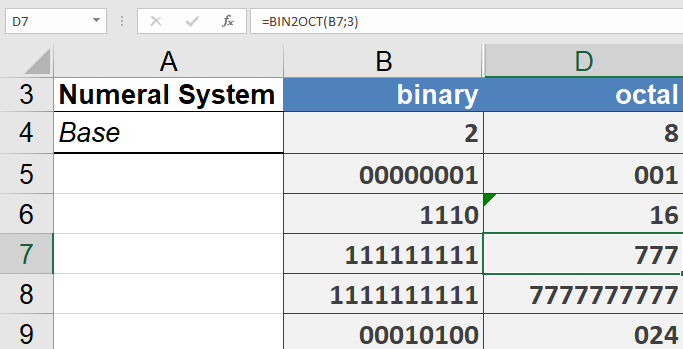
=BIN2OCT(1110) // Returns 16 (binary 1110 = octal 16)
=BIN2OCT(1110,4) // Returns 0016 (padded to 4 digits)
=BIN2OCT(111111111) // Returns 777 (binary 111111111 = octal 777)
=BIN2OCT(1111111111)// Returns 7777777777 (binary 1111111111 = -1 in two’s complement)
Key Features
- Handles both positive and negative binary numbers via two’s complement
- 10-digit binary input limit (sign bit included)
- Negative inputs always return 10-digit octal results
- Optional padding for positive numbers only