
This function retrieves details about the formatting, location, or contents of the upper-left cell in a specified range.
Syntax
CELL(info_type;[reference])
Arguments
- info_type (required)
A text string specifying the type of information to return (see in table 1). - reference (optional)
The cell being analyzed. If omitted, the function returns data for the last modified cell.
Background
The CELL() function requires knowledge of valid info_type arguments (listed below). Some return values are encoded (see Table 2 for number formats).
Table 1. info_type Arguments and Return Values
| Argument | Returns |
| « address » | Absolute reference of the cell (e.g., « $A$1 »). Includes sheet name if workbook is open. |
| « width » | Column width (rounded to integer), measured in characters of the default font. |
| « filename » | Full file path (empty if unsaved). |
| « color » | 1 if cell formats negative values in color; otherwise 0. |
| « format » | Text code for the cell’s number format (see Table 11-3). Appends « – » for color-negative or « () » for parentheses. |
| « contents » | Cell value (ignores formulas). |
| « parentheses » | 1 if cell uses parentheses for positives/all values; otherwise 0. |
| « prefix » | Text alignment marker: ‘ (left), » (right), ^ (center), \ (fill), or « » (other). |
| « protect » | 1 if cell is locked; 0 if unlocked. |
| « col » | Column number (e.g., 2 for column B). |
| « type » | Data type: « b » (blank), « l » (text), « v » (other). |
| « row » | Row number (e.g., 5 for row 5). |
Table 2. Number Format Codes
| CELL() Returns | Meaning |
| « G » | General |
| « F0 » | 0 |
| « 0 » | #,##0 |
| « F2 » | 0.00 |
| « ,2 » | #,##0.00 |
| « C0 » | Currency (no decimals) |
| « C0-« | Currency (no decimals, negatives in red) |
| « C2 » | Currency (2 decimals) |
| « C2-« | Currency (2 decimals, negatives in red) |
| « P0 » | 0% |
| « P2 » | 0.00% |
| « S2 » | Scientific (e.g., 0.00E+00) |
| « D1 » | Date: MM.DD.YY |
| « D2 » | Date: MM.DD |
| « D3 » | Date: MM.YY |
| « D4 » | Date: DD/MM/YY |
| « D5 » | Date: DD/MM |
| « D6 » | Time: h:mm:ss AM/PM |
| « D7 » | Time: h:mm AM/PM |
| « D8 » | Time: h:mm:ss |
| « D9 » | Time: h:mm |
Examples
- Track Cell Changes
- Display a warning if C63 is modified:
=IF(CELL(« address »)= »$C$63″, « Caution », « OK »)
-
- Highlight the changed cell directly (using conditional formatting):
=(CELL(« address »)= »$C$63″)

- Note: Resets when another cell is edited.
- Simplify Repeated Use
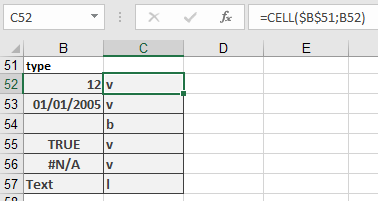
- Store info_type in a cell (e.g., B51 = « type »):
=CELL($B$51; B52) // Instead of =CELL(« type »;B52)
- Generate Consecutive Numbers
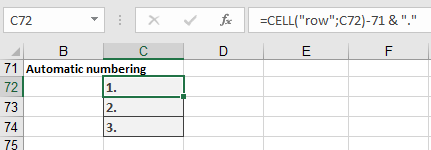
- Start numbering from row 72
=CELL(« row »; C72) – 71 & « . »
Result: 1., 2., etc.
Practical Tips
- IntelliSense aids formula entry.
- Conditional Formatting: Use CELL(« protect », …) to color-code locked/editable cells.
- Dynamic References: Combine with INDIRECT() for flexible lookups.