
This function returns the character corresponding to a specified numeric code from your computer’s character set.
Syntax:
CHAR(number)
Arguments:
- number (required):
An integer between 1 and 255 that specifies which character to return
Background:
The CHAR() function is particularly useful for:
- Converting numeric codes to displayable characters
- Inserting special control characters in strings
- Working with data from different operating systems
Key characteristics:
- Inverse function of CODE()
- Character output depends on system’s character encoding
- Essential for inserting non-printable characters
Common Uses:
- Adding line breaks:
=A1 & CHAR(10) & B1 (requires Wrap Text) - Inserting special characters:
= »Price: » & CHAR(36) & B2 (adds dollar sign) - Creating CSV-friendly strings:
=A1 & CHAR(44) & B1 (comma separator)
Important Codes:
| Code | Character | Description |
| 9 | Tab | Horizontal tab |
| 10 | LF | Line feed (Unix) |
| 13 | CR | Carriage return |
| 34 | « | Double quotation mark |
| 39 | ‘ | Apostrophe |
| 160 | Non-breaking space |
Examples:
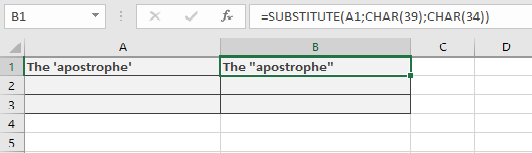
Assume that cell A2 contains the text The ‘apostrophe’. The formula results in The « apostrophe ». Though you only had to put the word apostrophe in double quotation marks, you had to enter four double quotation marks instead of three in the third argument.
This is complicated because the double quotation mark is now the text. An alternative is:
=SUBSTITUTE(E2,CHAR(39),CHAR(34))
Notes:
- Results vary between Windows/Mac systems for codes 128-255
- For Unicode characters, use UNICHAR() instead
- Combine with CLEAN() to remove non-printable characters