
This function counts cells that meet multiple specified conditions across different ranges. It extends COUNTIF() by supporting multiple criteria.
Syntax
COUNTIFS(criteria_range1; criteria1; [criteria_range2; criteria2]; …)
Arguments
- criteria_range1 (required): First range to evaluate
- criteria1 (required): Condition for criteria_range1 (number, expression, text, or reference)
- criteria_range2, criteria2,… (optional): Additional range/criteria pairs (up to 127 pairs)
Key Features
- All ranges must be the same size
- Only counts cells where ALL conditions are met (logical AND)
- Ignores empty cells and text in numeric ranges
- Supports same comparison operators as COUNTIF() (e.g., « >150000 »)
- Case-insensitive for text criteria
- Wildcards supported: ? (single char), * (any sequence)
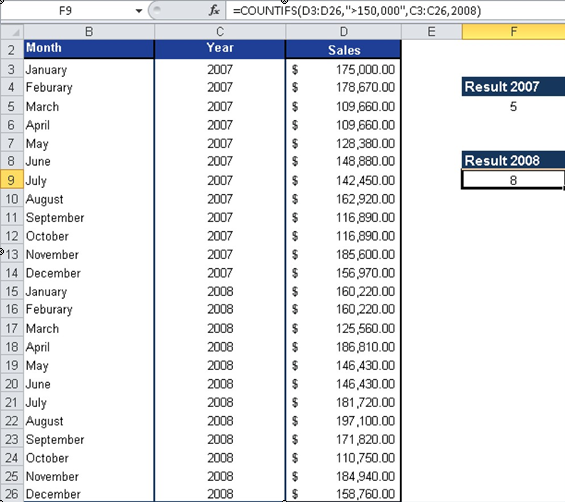
Example: Yearly Sales Comparison
Using the software company’s 24-month sales data:
- Total months >$150,000 (both years):
=COUNTIFS(C3:C26, »>150000″)
- Year-specific analysis (2007 vs 2008):
- For 2007:
=COUNTIFS(C3:C14, »>150000″,B3:B14,2007)
-
- For 2008:
=COUNTIFS(C15:C26, »>150000″,B15:C26,2008)
Results (Figure below):
- 2007: 7 months above target
- 2008: 15 months above target
- Improvement: 8 additional months achieved target in 2008
Practical Applications
- Multi-condition data analysis
- Year-over-year performance comparisons
- Complex filtering without pivot tables
- Data validation across multiple parameters
Note: For OR logic between criteria (counting if EITHER condition is met), use multiple COUNTIFS() functions summed together.