
The COUNTIFS function is a function used for counting cells that meet single or multiple conditions or criteria. Just like the COUNT and COUNTIF functions, the COUNTIFS function is used with criteria or conditions relating to numbers, dates, text, logical operators, and wildcards.
The COUNTIFS function has the following arguments:
=COUNTIFS(criteria_range1; criteria1; [criteria_range2; criteria2]…)
Criteria_range1 (Required Argument): This is the first range to be evaluated with the associated criteria.
Criteria1 (Required Argument): This is the condition to be applied to criteria_range1, which may be an expression, number, cell reference, or text specifying which cells to count. For example, criteria can be expressed as 43, « >23 », D2, etc.
Criteria_range2, criteria2 (Optional Argument): These are additional ranges and their associated criteria. The function allows up to 127 range/criteria pairs. The criteria can be:
- A numerical value (integer, decimal, time, or logical value)
- A text string (e.g., « Monday », « East », « Price ») including wildcards (*, ?)
USING THE COUNTIFS FUNCTION
Using the table below, let’s count the number of shoes that are red.
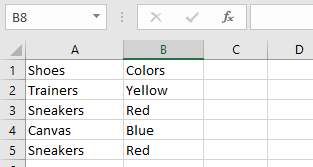
To count red shoes in the list, follow these steps:
- Select an empty cell and enter:
=COUNTIFS(A2:A5; « sneakers »; B2:B5; « red »)
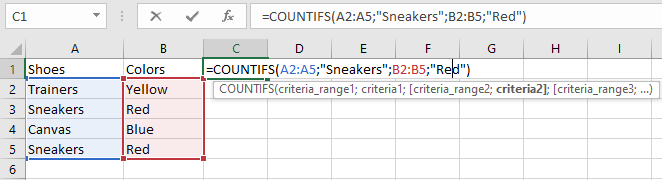
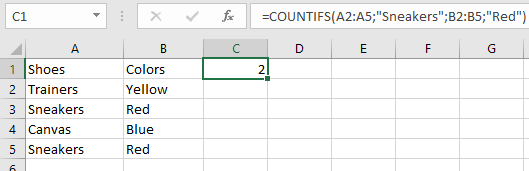
- Press Enter. The result will be 2, as shown in the table.
NOTE: Remember these points when using COUNTIFS:
- COUNTIFS treats empty cells as 0 when criteria reference an empty cell.
- #VALUE! error occurs if:
- Criteria ranges have different lengths
- Text criteria exceed 255 characters
- Wildcards (*, ?) can be used in criteria.
- The function evaluates each cell pair sequentially:
- If the first cell pair meets criteria, count increases by 1
- If the second pair meets criteria, count increases again by 1
- This continues until all cells are evaluated