
The IF function is a function that tests a given condition and returns one value for a TRUE result and another value for a FALSE result. This function allows you to make a logical comparison between a value and what you expect.
The IF function uses the following syntax:
=IF(Logical_test; [Value_if_true]; [Value_if_false])
Arguments:
- Logical_test (Required Argument): This is the value or logical expression to be tested and evaluated as either TRUE or FALSE.
- Value_if_true (Optional Argument): This is the value returned if the logical test evaluates to TRUE.
- Value_if_false (Optional Argument): This is the value returned if the logical test evaluates to FALSE.
When using this function, the following logical operators can be applied:
- Equal to (=)
- Greater than (>)
- Greater than or equal to (≥)
- Less than (<)
- Less than or equal to (≤)
- Not equal (≠)
USING THE IF FUNCTION
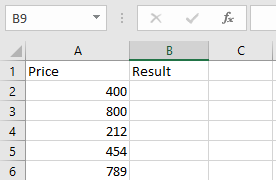
In the table below, we want to test whether the values in the cells are greater than 500 or not. If TRUE, the result will be « Yes », and if FALSE, the result will be « No ».
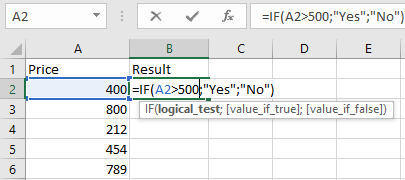
To check if cell A2 is greater than 500, enter:
=IF(A2>500; « Yes »; « No »)
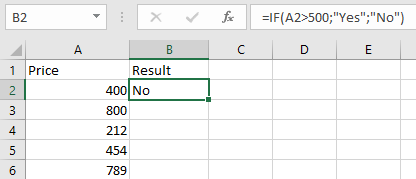
Press Enter, and the returned value will be « No ».
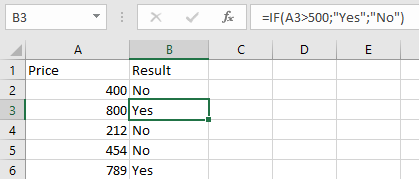
Use the same steps to evaluate cells A3 to A6:
=IF(A3>500; « Yes »; « No »)
=IF(A4>500; « Yes »; « No »)
=IF(A5>500; « Yes »; « No »)
=IF(A6>500; « Yes »; « No »)
NOTES WHEN USING THE IF FUNCTION:
- The IF function works if the logical_test returns a numeric value.
- It treats any non-zero value as TRUE and zero as FALSE.
- #VALUE! occurs when the logical_test argument cannot be evaluated as TRUE or FALSE.
- If any argument is supplied as an array, the IF function evaluates each element of the array.
- To count based on conditions, use COUNTIF and COUNTIFS.
- To sum based on conditions, use SUMIF and SUMIFS.