
This function returns TRUE if the value is not text (including numbers, errors, logical values, or empty cells). It returns FALSE only if the value is text.
Syntax
ISNONTEXT(value)
Arguments
- value (required): The expression to check (number, text, formula, logical value, error, reference, or name).
Key Features
- Part of the IS() function family – evaluates without type conversion (e.g., « 123 » is treated as text, not a number).
- Returns TRUE for empty cells – unlike some other IS functions.
- Counterpart to ISTEXT():
ISNONTEXT(value) = NOT(ISTEXT(value))
Practical Applications
- Data Validation (Prevent Text Entries)
=ISNONTEXT(B41)
- Use in Data Validation (Custom formula) to block text inputs in a cell while allowing numbers/dates/empty cell
- Location: Data tab → Data Validation → Custom → Enter formula
- Handling Cell Overflow Issues
When long text might spill into adjacent cells:
- Combine with conditional formatting to flag potential display issues
- Use to trigger warnings when formulas generate unexpected text outputs
- Clean Data Processing
=IF(ISNONTEXT(A1), « Numeric Data », « Text Data »)
- Useful for data type categorization in reports
- Helps separate text/non-text entries for different processing
Special Notes:
- Returns TRUE for all error types (#N/A, #VALUE!, etc.)
- Blank cells return TRUE (different from some other IS functions)
- Numeric strings (e.g., « 123 ») are considered TEXT (returns FALSE)
Example Setup:
- Select target cell
- Data → Data Validation → Custom
- Enter: =ISNONTEXT(B41)
- Set error alert style/message
- Copy validation to other cells as needed
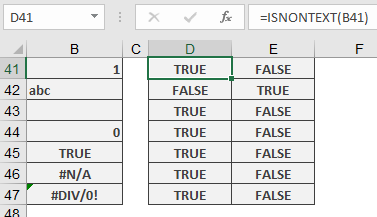
This provides robust control over text inputs while allowing all other value types.