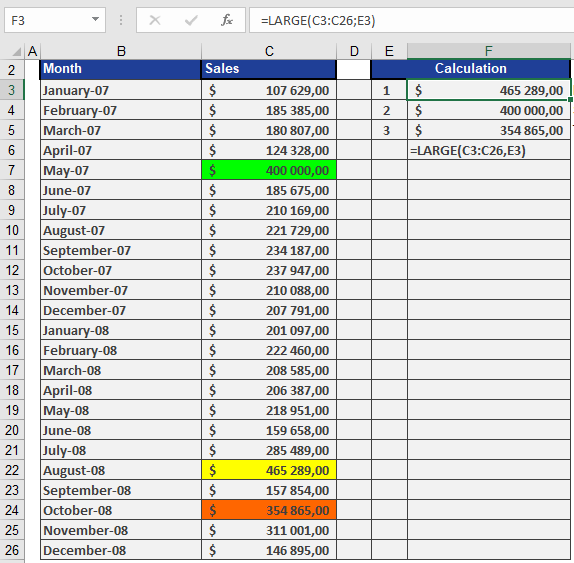
This function returns the k-th largest value in a data set. Use this function to select a value based on its relative size. For example, you can use LARGE() to calculate the top three sales in a table.
Syntax: LARGE(array, k)
Arguments
- array (required): The array or range of data for which you want to determine the k-th largest value.
- k (required): The position of the element in the array or cell range to return (e.g., 1 for the largest value, 2 for the second-largest, etc.).
Background
The MIN() and MAX() functions find the smallest or largest value in a range, but if you need the second-largest or third-smallest value, use LARGE() and SMALL().
- LARGE() returns the largest values.
- SMALL() returns the smallest values from a range.
Notes
- If array is empty, LARGE() returns the #NUM! error.
- If k is ≤ 0 or greater than the number of data points, the function returns #NUM!.
- If n is the number of data points in a range:
- LARGE(array, 1) returns the largest value.
- LARGE(array, n) returns the smallest value.
Examples
Software Company Example
Assume a software company has a table with sales from the last two years and wants to find the three highest sales without sorting the data. The LARGE() function retrieves the three largest values, as shown in Figure below.