
The MINUTE function is use to extracts the minute component from a time value (with or without an associated date). Returns an integer between 0 and 59.
Syntax
MINUTE(serial_number)
Arguments
- serial_number (required):
- A valid time value
- Can be entered as:
- A time string in quotes (e.g., « 06:43 »)
- A decimal number representing time (e.g., 0.27986111 for 06:43)
- The result of another formula/function (e.g., NOW())
- A cell reference containing a time/date
Background
Part of Excel’s time function family (along with HOUR() and SECOND()). Used to:
- Extract minute values for time-based calculations
- Analyze scheduling data
- Build dynamic time-dependent formulas
Example
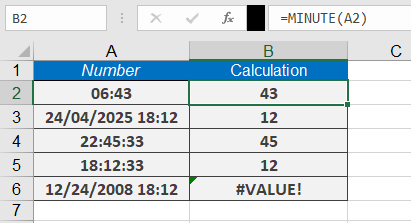
Assume that you need to calculate the minutes after the full hours.
Here are example formulas:
=MINUTE(« 06:43 ») returns 43 minutes.
=MINUTE(« 12/24/2010 18:12 ») returns 12.
=MINUTE(NOW()) returns the current minute.
Notes
- Returns #VALUE! for invalid time formats
- For decimal inputs:
- 0.0 = 12:00:00 AM
- 0.5 = 12:00:00 PM
- 0.999 = 11:59:59 PM
- Combine with HOUR() and SECOND() for complete time extraction
This function is essential for time tracking, scheduling, and data analysis in Excel.