
Its returns the matrix product of two arrays. The resulting matrix has:
- Rows = Number of rows in array1
- Columns = Number of columns in array2
Syntax
MMULT(array1; array2)
Arguments
| Parameter | Requirement | Valid Input |
| array1 | Required | Numeric array with dimensions m×n |
| array2 | Required | Numeric array with dimensions n×p |
Note: The number of columns in array1 must equal the number of rows in array2.
Key Properties
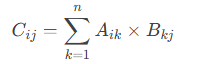
- Mathematical Operation:
For matrices A (m×n) and B (n×p), the product C (m×p) is calculated as:
- Input Rules:
- Supports:
- Cell ranges (e.g., A1:B2)
- Array constants (e.g., {1,2;3,4})
- Named ranges
- Rejects:
- Non-numeric/text → #VALUE!
- Dimension mismatch → #VALUE!
- Supports:
- Array Formula:
- In legacy Excel, enter with Ctrl+Shift+Enter.
- Excel 365 handles dynamic arrays automatically.
Examples
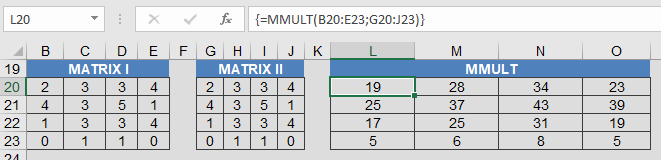
Real-World Use:
-
- Physics: Transformations in 3D space.
- Finance: Portfolio risk calculations.
- Engineering: Stress-strain models.
Why This Matters
- Solves systems of linear equations (e.g., with MINVERSE).
- Fundamental in computer graphics (rotation/scaling).
- Used in machine learning (neural networks).
Error Handling
| Error | Cause | Solution |
| #VALUE! | Dimension mismatch/non-numeric input | Verify matrix dimensions |
Related Functions
- MINVERSE(): Matrix inversion (for solving equations).
- MDETERM(): Matrix determinant (invertibility check).
- SUMPRODUCT(): Dot product for vectors.