
The Nested IF function refers to one IF function placed inside another IF function, enabling you to evaluate multiple conditions and expand the range of possible results. While you could achieve similar outcomes using separate IF functions individually, nesting them provides a more streamlined approach. Now, let’s apply the Nested IF function to the table below to examine whether prices exceed or fall below 500.

USING THE NESTED IF FUNCTION
To determine if a value is greater than 500 using the Nested IF, input the following formula in an empty cell:
=IF(A2>500; « Yes »; « No »
=IF(A3>500; « Yes »; « No »
=IF(A4>500; « Yes »; « No »
=IF(A5>500; « Yes »; « No »)
=IF(A6>500; « Yes »; « No »))))
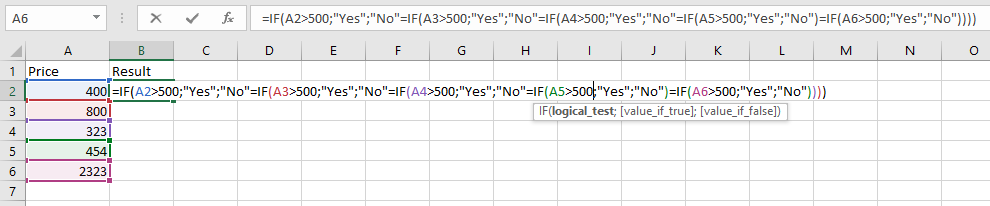
Press Enter, and the result for the first referenced cell will appear.
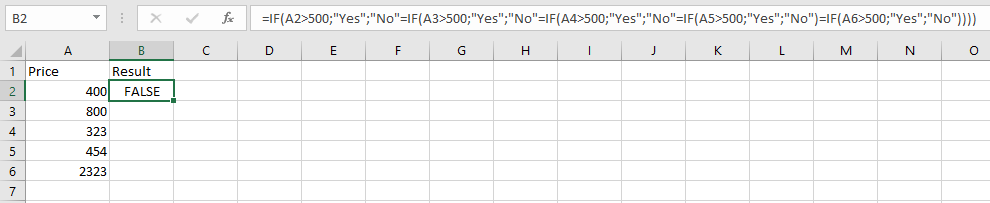
To extend this evaluation to the remaining cells, utilize the fill handle to drag the formula downward, applying it to the other cells automatically.

IMPORTANT NOTES ON NESTED IF FUNCTIONS
- Precision in Construction
- Crafting a Nested IF function demands careful thought and accuracy to ensure the logic processes each condition correctly through to the final outcome.
- Potential for Complexity
- Nested IF functions can become difficult to follow, particularly when numerous IF functions are nested within one another.