
Its converts an octal (base-8) number to its binary (base-2) equivalent using two’s complement notation.
Syntax
OCT2BIN(number; [places])
Arguments
- number (required)
- Octal number to convert (10-digit maximum)
- Can be entered as text string or number
- Valid range: 7777777000 (-512) to 777 (511) decimal equivalent
- places (optional)
- Minimum number of binary digits to display (1-10)
- Adds leading zeros for positive numbers
- Ignored for negative numbers (always 10 digits)
Technical Specifications
| Characteristic | Details |
| Input Range | Negative: 7777777000 to 7777777777 Positive: 0 to 777 |
| Output Range | Negative: 10-digit binary Positive: 1-10 digit binary |
| Special Handling | Negative values ignore places parameter |
| Input Format | Accepts both string and numeric input |
Examples
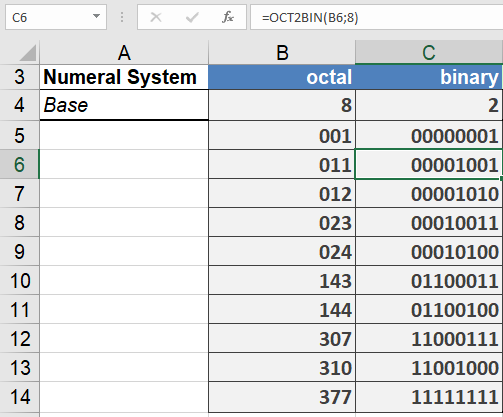
Common Use Cases
- Legacy system modernization
- Embedded systems programming
- Digital circuit design
- File permission analysis
Error Handling
- #NUM! Error:
- Input exceeds valid range
- Places too small for positive number conversion
- More than 10 octal digits
- #VALUE! Error:
- Contains non-octal digits (8-9, letters)
- Empty input
Best Practices
- For negative inputs, output will always be 10 binary digits
- Use quotes around octal literals for clarity
- For consistent formatting of positive numbers, specify places parameter
- Pre-validate octal strings in dynamic applications