
Its returns the integer portion of a division operation (without the remainder).
Syntax
QUOTIENT(numerator; denominator)
Arguments
| Parameter | Requirement | Valid Input |
| numerator | Required | Dividend (number to divide) |
| denominator | Required | Divisor (must be ≠ 0) |
Key Properties
- Behavior:
- Truncates (not rounds) the result toward zero.
- Equivalent to INT(numerator/denominator) for positive numbers.
- Ignores remainder: QUOTIENT(5, 2) = 2 (remainder 1 is dropped).
- Error Handling:
- #DIV/0! if denominator = 0.
- #VALUE! for non-numeric inputs.
- Mathematical Equivalent:

Examples
- Paint Mixing Example:
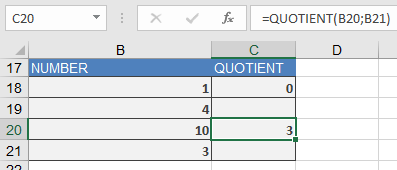
=QUOTIENT(1, 4) → Returns 0 (since 1/4 = 0.25, integer part is 0)
- Real-World Use:
- Inventory: Full crates from total items (=QUOTIENT(total_items, items_per_crate)).
- Timekeeping: Complete hours worked (=QUOTIENT(minutes, 60)).
Comparison with Similar Functions
| Function | Example (10, 3) | Notes |
| QUOTIENT() | 3 | Drops remainder |
| / | 3.333… | Full decimal result |
| INT(numerator/denominator) | 3 | Same as QUOTIENT for positives |
| TRUNC(numerator/denominator) | 3 | Identical to QUOTIENT |
Why This Matters
- Efficiency: Faster than INT() or TRUNC() for integer division.
- Clarity: Explicitly signals intent to discard remainders.
- Compatibility: Requires Analysis ToolPak in older Excel versions.
Related Functions
- MOD(): Returns the remainder.
- INT()/TRUNC(): Alternative truncation methods.
- ROUND(): Controlled rounding.