
The reference format of the INDEX function returns a cell reference at the intersection of specified row and column numbers within one or more ranges.
Syntax:
=INDEX(reference; row_num; [column_num]; [area_num])
Arguments:
- reference (Required):
One or more cell ranges. Multiple ranges must be separated by commas and enclosed in parentheses (e.g., (A1:B2;D5:E6)). - row_num (Required):
The row position within the reference.- If 0, returns a reference to all rows in the range.
- column_num (Optional):
The column position within the reference.- If 0, returns a reference to all columns in the range.
- area_num (Optional):
Specifies which range to use when multiple ranges are provided in reference.- Defaults to 1 (first range) if omitted.
USING THE REFERENCE FORMAT OF THE INDEX FUNCTION
Example: Find the Price of Mango
Given the following table (range A2:C10):
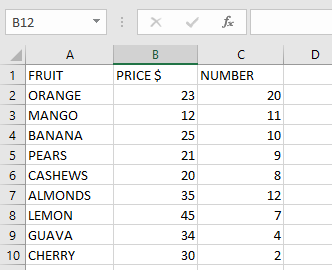
Steps to find Mango’s price (row 2, column 3, area 1):
- Select an empty cell.
- Enter the formula:
=INDEX((A2:C10); 2; 3; 1)
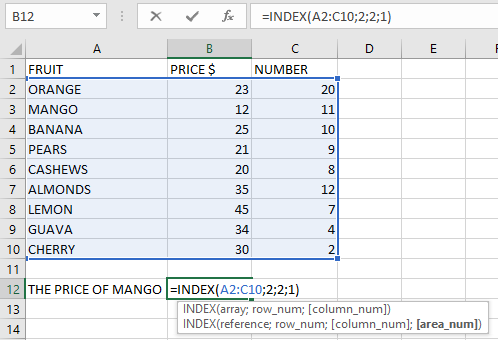
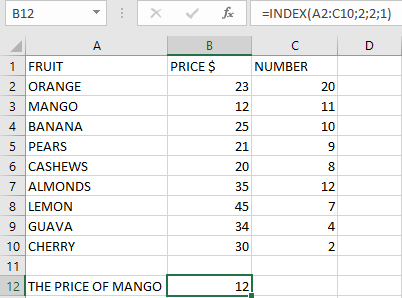
- Press Enter → Returns 12 (Mango’s price).
NOTES & ERROR HANDLING
- Return Behavior:
- Returns the value at the row/column intersection when both row_num and column_num are specified.
- Returns an array of values if either row_num or column_num is 0.
- Common Errors:
- #VALUE!: Occurs if row_num, column_num, or area_num is non-numeric.
- #REF!: Occurs when:
- row_num exceeds the range’s row count.
- column_num exceeds the range’s column count.
- area_num exceeds the number of provided ranges.
- Multi-Range Example:
=INDEX((A1:B2;D5:E6); 1; 2; 2)
Returns the value from row 1, column 2 of the second range (D5:E6).