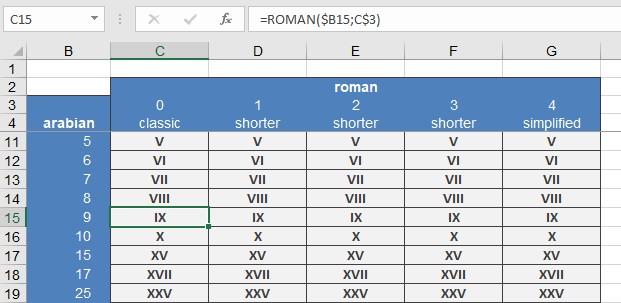
This function converts an Arabic numeral into a Roman numeral.
Syntax:
ROMAN(number ; form)
Arguments:
- number (required) – The Arabic numeral to convert (must be between 0 and 3999). Negative numbers or values above 3999 return a #VALUE! error.
- form (optional) – A number specifying the Roman numeral style, ranging from Classic (0) to Simplified (4). Higher values produce more concise forms (see *Table 1*).
Table 1. Possible Values for the form Argument
| Value | Type of Roman Numeral |
| 0 | Classic |
| 1 | More concise |
| 2 | More concise |
| 3 | More concise |
| 4 | Simplified |
| TRUE | Classic |
| FALSE | Simplified |
Background:
Roman numerals consist of basic numerals and auxiliary numerals, the latter introduced to shorten lengthy representations (see *Table 2*).
Table 2. Roman Numeral Forms
| Basic Numeral | Value | Auxiliary Numeral | Value |
| I | 1 | V | 5 |
| X | 10 | L | 50 |
| C | 100 | D | 500 |
| M | 1000 |
Rules for Roman Numerals:
- Addition: Identical adjacent numerals are added (max 3 in a row).
- Example: III = 3.
- Subtraction: A smaller numeral to the left of a larger one is subtracted; to the right, it is added. Auxiliary numerals (V, L, D) cannot be subtracted.
- Examples: XI = 11, IX = 9, XLV = 45.
- Subtraction Limits: Basic numerals (I, X, C) can only be subtracted from the nearest larger value.
- Examples: CD = 400, CM = 900.
Historically, Roman numerals were used in Europe until the 16th century, with adjustments over time. The subtractive notation (e.g., IV for 4) was not originally used—clocks often display 4 as IIII.
Examples:
The ROMAN() function is useful for chapters, lists, or enumerations: