
The ROW function returns the row number of a specified cell reference in a worksheet. This function helps identify the numerical position of rows in Excel’s grid system.
Syntax:
=ROW([reference])
Argument:
- reference (Optional):
The cell or range for which you want to determine the row number.- If omitted, returns the row number of the cell containing the formula.
USING THE ROW FUNCTION
Example: Finding Row Numbers
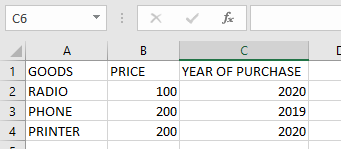
To find the row number of cell A3:
- Select a blank cell
- Enter the formula:
=ROW(A3)
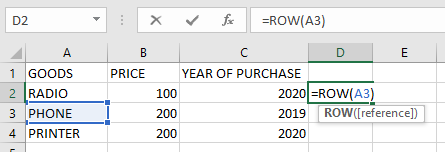
- Press Enter → Returns 3
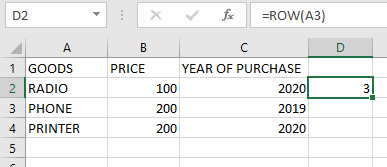
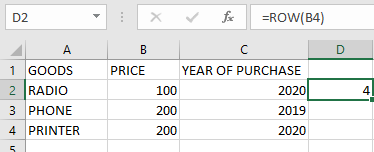
To find the row number of cell B4:
- Select a blank cell
- Enter the formula:
=ROW(B4)
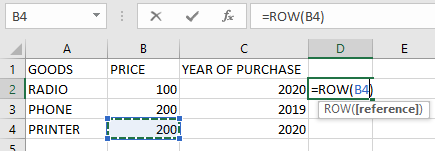
- Press Enter → Returns 4
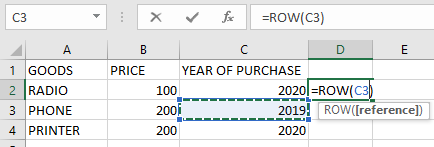
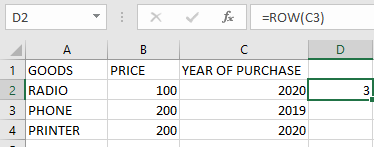
To find the row number of cell C3:
- Select a blank cell
- Enter the formula:
=ROW(C3)
- Press Enter → Returns 3
Using ROW without reference:
=ROW()
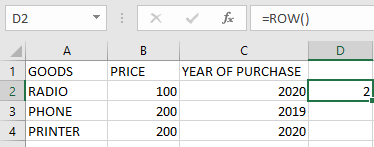
Returns the row number of the cell containing this formula.
IMPORTANT NOTES:
- Single Reference Only:
- Processes only one cell reference at a time
- Reference Types Accepted:
- Works with single cells or range references
- Returns the top row number for ranges
- Optional Argument:
- When omitted, automatically references the formula cell
- Array Handling:
- Returns an array of row numbers when reference is a range
- Example: =ROW(A1:A5) returns {1;2;3;4;5}
- Key Differences from ROWS Function:
- ROW returns position numbers
- ROWS counts total rows in range