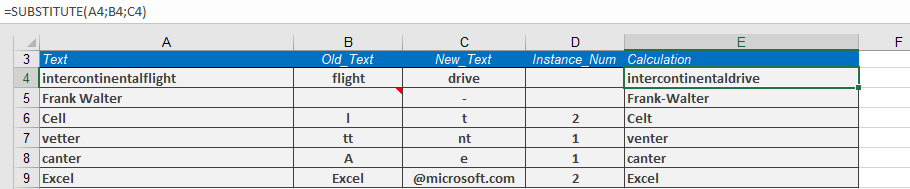
The SUBSTITUTE() function replaces characters or strings with new text.
Syntax:
SUBSTITUTE(text; old_text; new_text; [instance_num])
Arguments:
- text(required): The text or the reference to a cell containing text in which you want to substitute characters.
- old text(required): The string you want to replace.
- new text(required): The string you want to replace old text
- instance Num(optional): Specifies which occurrence of old text you want to replace with new text. If you specify instance Num, only that occurrence of old text is replaced; otherwise, every instance of old text is replaced.
Background:
Use this function to replace a string of text with alternative text. The replacement can be for a single or for multiple instances.
You can use the SUBSTITUTE() function to replace a specific string within text. Use the REPLACE() function to replace a string at a certain position within text.
Example:
Here are some few examples:
- =SUBSTITUTE(« intercontinentalflight »; « flight »; « drive »)→ « intercontinentaldrive »
- =SUBSTITUTE(« cell » ; « l » ; « t » ; 2)→ « celt »
- =SUBSTITUTE(« vetter » ; « tt » ; « nt » ; 1)→ « venter »
- =SUBSTITUTE(« canter »; « A »; « e »)→ « canter » (no change, as « A » is not found)
- =SUBSTITUTE(« million »; « m »; « b »)→ « billion »