
The SUM function adds or totals the values of selected cells, rows, or columns.
Syntax
=SUM(number1, [number2], …)
How to Insert the SUM Function
- Select a cell and type =SUM(.
- In the function arguments, select the desired cells or range.
- Press Enter to display the result.
Arguments
- number1 (Required): The first value or range to sum.
- [number2], [number3], … (Optional): Additional values or ranges to include in the sum.
USING THE SUM FUNCTION
Example: Calculate the total sales from Monday to Friday.
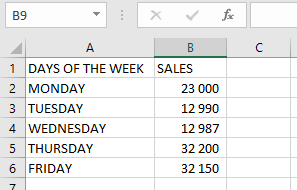
To calculate the sales from Monday to Friday using SUM, follow the steps below
Steps:
- Select an empty cell.
- Enter the function with the cell range:
=SUM(A2:B6)
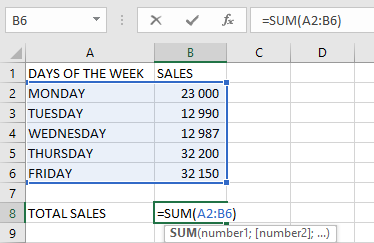
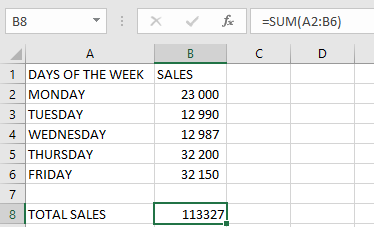
- Press Enter—the result (e.g., 113,327) will appear.
NOTES WHEN USING THE SUM FUNCTION
- #VALUE! Error: Occurs if the criteria exceed 255 characters.
- Ignored Cells: The SUM function automatically skips empty cells and text values.
- Valid Arguments: Can include constants, ranges, named ranges, or cell references.
- Error Handling: If any argument contains an error, the SUM function returns an error.