
The TRANSPOSE function is used to switch the orientation of a given range or array – converting vertical ranges to horizontal and vice versa.
Syntax:
=TRANSPOSE(array)
Argument:
- array (Required):
The range of cells to be transposed. When transposed:- The first row becomes the first column of the new array
- The second row becomes the second column
- This pattern continues for all rows/columns
USING THE TRANSPOSE FUNCTION
Example: Convert Vertical Range to Horizontal
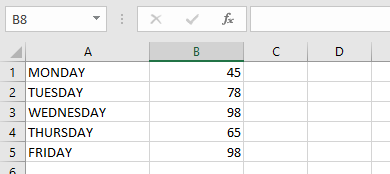
Original Vertical Range (A1:B5)
Steps to Transpose:
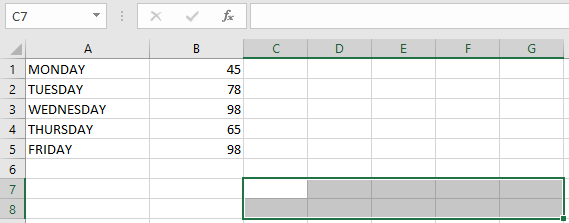
- Select blank cells in a horizontal arrangement matching the original range’s dimensions (e.g., 2 columns × 5 rows → select 5 columns × 2 rows)
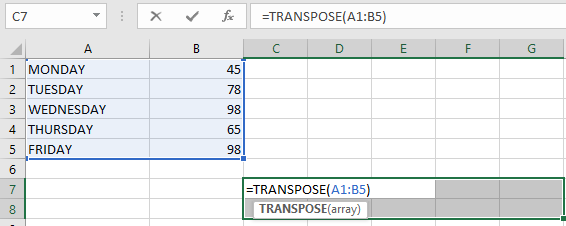
- Enter the formula:
=TRANSPOSE(A1:B5)
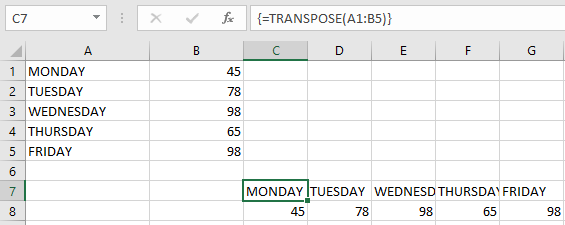
- Press Ctrl+Shift+Enter (to enter as an array formula)
Result:
IMPORTANT NOTES:
- Array Formula Requirement:
- Must be entered with Ctrl+Shift+Enter (not just Enter)
- Curly braces {} will appear around the formula
- Editing Restrictions:
- Cannot modify part of the transposed array
- To edit: Select entire transposed range → Make changes → Re-apply with Ctrl+Shift+Enter
- Range Dimensions:
- Target range must have inverse dimensions of source range
- (e.g., 3 rows × 2 columns → needs 2 rows × 3 columns blank cells)
- Dynamic Arrays (Excel 365):
- Newer versions don’t require Ctrl+Shift+Enter
- Automatically spills results