
The VALUE() function converts text representations of numbers into numeric values.
Syntax:
VALUE(text)
Arguments:
- text (required): The text string (enclosed in quotation marks) or cell reference containing the text to be converted to a number.
Background:
While Excel automatically converts number-like text to numeric values in most cases, the VALUE() function is particularly useful when:
- Processing data imported from external sources (e.g., text files, databases)
- Handling numbers stored as text by third-party applications or add-ins
- Preparing data for mathematical operations where text-formatted numbers would cause errors
Alternative Conversion Method (Paste Special):
- Enter 1 in an empty cell and copy it (Ctrl+C)
- Select the range containing text-formatted numbers
- Use Paste Special (Home → Paste dropdown → Paste Special)
- Select Values and Multiply, then click OK
- Delete the temporary cell containing 1
Note: The VALUE() function supports all Excel-recognized formats for:
- Numbers (including decimals and currency symbols)
- Dates
- Times
Returns #VALUE! error for incompatible formats (e.g., logical values, text strings).
Examples
| Formula | Result | Explanation |
| =VALUE(« 1.234 ») | 1234 | Converts numeric text to number (uses system decimal separator) |
| =VALUE(1234) | 1234 | Returns number unchanged |
| =VALUE(« 09/09/2008 ») | 39700 (date serial value) | Converts date string to Excel date number |
| =VALUE(TRUE) | #VALUE! | Fails with logical values |
| =VALUE(« $1,000 ») | 1000 | Handles currency symbols and commas |
| =VALUE(« 12:30 PM ») | 0.520833 (time serial value) | Converts time text to decimal |
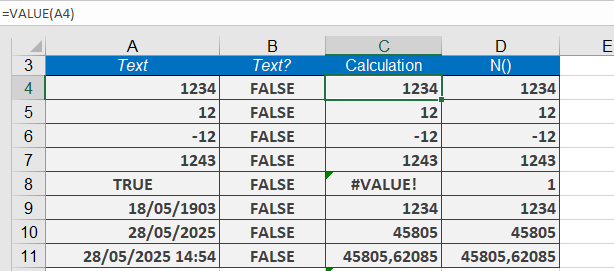
Key Notes
- Regional Settings Impact:
- Decimal/thousand separators must match system settings (e.g., VALUE(« 1,234 ») fails if system uses commas as decimals).
- Error Handling:
- Wrap with IFERROR for problematic data:
=IFERROR(VALUE(A1), « Invalid number »)
- Wrap with IFERROR for problematic data:
- Automatic Conversion:
- Excel usually auto-converts text to numbers in calculations (making VALUE() redundant in simple cases).
- Date/Time Caveat:
- Converted dates/times appear as serial numbers—apply number formatting to display properly.
Practical Use Case
When importing CSV data with numeric columns flagged as text:
=VALUE(TRIM(A2))
→ Combines TRIM() to remove extra spaces before conversion