
This function calculates the date that is a specified number of workdays before or after a start date, excluding weekends and optional holidays.
Syntax:
WORKDAY(start_date, days, [holidays])
Arguments:
- start_date (required): The beginning date for the calculation
- days (required): Number of workdays to add (positive) or subtract (negative)
- holidays (optional): List of dates to exclude as non-working days (e.g., public holidays)
Background:
Use WORKDAY() to:
- Calculate payment due dates based on business days
- Determine project deadlines excluding weekends/holidays
- Schedule deliveries within working days
Key features:
- Excludes Saturdays/Sundays by default
- Doesn’t count the start_date in calculations
- Holidays can be specified as a range or array constant
- Unlike NETWORKDAYS(), doesn’t include start date in count
Important notes:
- Returns #VALUE! for invalid dates
- Returns #NUM! if result is outside valid date range
- Truncates decimal values in days argument
Examples:
- Basic calculation:
=WORKDAY(TODAY(), 30) → Returns date 30 workdays from today - With holiday exclusion:
=WORKDAY(« 12/12/2010 », 12, {« 12/24/2010″, »01/01/2011 »}) → Returns 12/29/2010 - Negative days:
=WORKDAY(« 01/15/2023 », -10) → Returns date 10 workdays before Jan 15, 2023
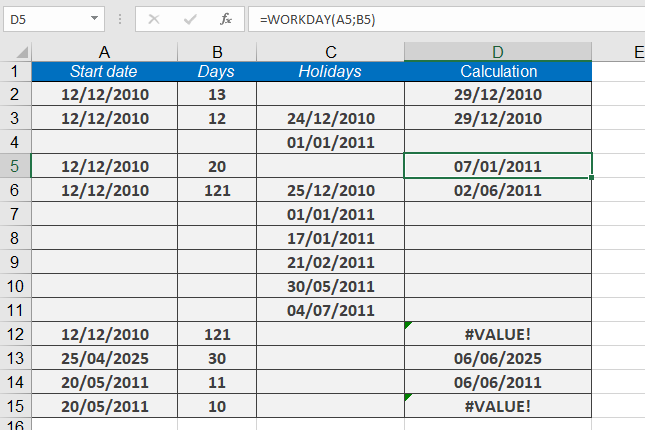
Formatting Note:
When entering holidays directly in formula, use curly braces {} not parentheses.