
Instead of using data bars or color scales, the relative sizes of a series of numbers can also be visually represented using different symbols, as shown in the following program:
Sub IconSetExample()
    Dim Rg As Range
    ThisWorkbook.Worksheets("Sheet6").Activate
    Set Rg = Range("A2:A11")
    ' Remove existing conditional formats
    Rg.FormatConditions.Delete
    ' Add icon set conditional formatting
    Rg.FormatConditions.AddIconSetCondition
    ' Modify icon set settings
    With Rg.FormatConditions(1)
        .IconSet = ActiveWorkbook.IconSets(1)
        .IconCriteria(2).Value = 45
        .IconCriteria(3).Value = 90
    End With
    Set Rg = Nothing
End Sub
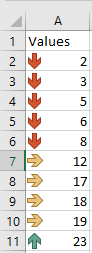
Explanation:
The AddIconSetCondition() method creates an object of the class IconSetCondition, which is a conditional formatting rule using an icon set.
The type of icon set can be changed by assigning an element from the IconSets collection of the active workbook to the IconSet property of the conditional format.
Icon sets can contain three, four, or five different icons. In this example, a three-icon set is used.
New threshold values are set for the second and third icons by modifying the Value property of the second and third elements in the IconCriteria collection.
For example, if a cell contains a value at least 45% of the maximum value in the range, the second icon is displayed; for 90% or more, the third icon is shown. By default, the thresholds are 34% and 67%.
Excel 2007 already includes 17 different icon sets, and Excel 2010 added three more. The following program displays all 20 icon sets neatly:
Sub DisplayAllIconSets()
    Dim Rg As Range
    Dim i As Integer
    ThisWorkbook.Worksheets("Sheet7").Activate
    For i = 1 To 20
        Range("A2:A11").Copy Cells(2, i)
        Cells(1, i).Value = "S " & i
        Set Rg = Range(Cells(2, i), Cells(11, i))
        Rg.FormatConditions.Delete
        Rg.FormatConditions.AddIconSetCondition
        Rg.FormatConditions(1).IconSet = ActiveWorkbook.IconSets(i)
    Next i
    Set Rg = Nothing
End Sub
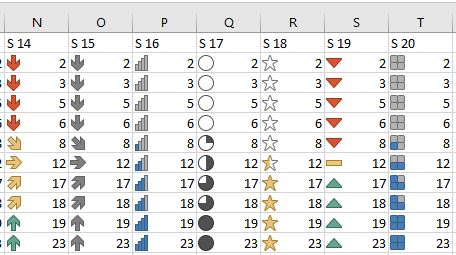
Explanation:
The values in the first column are copied into the subsequent columns.
For each column, a range of ten cells is selected for conditional formatting.
An icon set conditional format is created for each range, with the icon set type assigned from the 20 available options.