
To implement advanced geospatial analysis techniques using Excel VBA, you need to understand a few important concepts and tools that allow you to handle and process geographical data. Geospatial analysis often involves working with spatial data, such as geographic coordinates (latitude and longitude), calculating distances, performing spatial queries, or using mapping techniques.
Since Excel VBA doesn’t come with native geospatial analysis tools like GIS software, you would typically need external libraries (such as the Geopy library in Python) or APIs (such as Google Maps API or Bing Maps API). However, Excel can still perform basic geospatial analysis, such as distance calculations, geographical transformations, and even basic mapping using VBA code.
Let’s walk through the process of implementing some advanced geospatial analysis techniques in Excel VBA, with detailed explanations of each step.
- Geospatial Data Preparation
Before performing geospatial analysis, the data should typically consist of geographical coordinates. Here is a simple setup:
| ID | Name | Latitude | Longitude |
| 1 | Place A | 34.0522 | -118.2437 |
| 2 | Place B | 40.7128 | -74.0060 |
| 3 | Place C | 51.5074 | -0.1278 |
You may also have additional attributes like elevation, region, or area.
- Calculating the Distance Between Two Geographical Points (Haversine Formula)
To calculate the distance between two geographical coordinates (latitude and longitude), you can use the Haversine Formula, which calculates the great-circle distance between two points on the Earth’s surface.
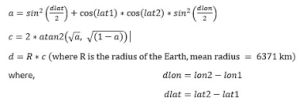
Here is the VBA code that uses the Haversine formula to calculate the distance:
Function HaversineDistance(lat1 As Double, lon1 As Double, lat2 As Double, lon2 As Double) As Double
    Dim R As Double
    Dim dLat As Double
    Dim dLon As Double
    Dim a As Double
    Dim c As Double
    ' Radius of the Earth in kilometers
    R = 6371
    ' Convert degrees to radians
    lat1 = WorksheetFunction.Radians(lat1)
    lon1 = WorksheetFunction.Radians(lon1)
    lat2 = WorksheetFunction.Radians(lat2)
    lon2 = WorksheetFunction.Radians(lon2)
    ' Differences in coordinates
    dLat = lat2 - lat1
    dLon = lon2 - lon1
    ' Haversine formula
    a = Sin(dLat / 2) ^ 2 + Cos(lat1) * Cos(lat2) * Sin(dLon / 2) ^ 2
    c = 2 * Atn(Sqr(a) / Sqr(1 - a))
    ' Calculate distance
    HaversineDistance = R * c
End Function
Explanation of the Code:
- Function Definition: The function HaversineDistance takes four parameters: the latitudes and longitudes of two locations.
- Convert to Radians: The latitudes and longitudes are converted from degrees to radians using WorksheetFunction.Radians.
- Calculate Differences: The differences in latitude and longitude are calculated.
- Haversine Formula: The formula is used to calculate the central angle between the two points.
- Distance Calculation: The final distance is calculated by multiplying the Earth’s radius by the central angle.
- Calculating the Midpoint Between Two Geographical Points
In some cases, you may want to calculate the midpoint between two geographic coordinates. The formula for calculating the midpoint is:
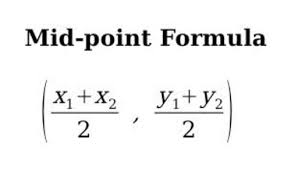
Here’s how you can implement this in VBA:
Function Midpoint(lat1 As Double, lon1 As Double, lat2 As Double, lon2 As Double) As String
    Dim midLat As Double
    Dim midLon As Double
    ' Calculate midpoint
    midLat = (lat1 + lat2) / 2
    midLon = (lon1 + lon2) / 2
    ' Return midpoint as a string
    Midpoint = "Latitude: " & midLat & ", Longitude: " & midLon
End Function
Explanation of the Code:
- The function calculates the average latitude and longitude between the two points and returns the midpoint as a string.
- Clustering Points Using K-Means Algorithm
Geospatial clustering is a common technique for identifying clusters of nearby points. One of the most widely used algorithms for clustering data is K-Means Clustering.
While implementing a full K-Means algorithm from scratch can be complex in VBA, here’s a simplified outline of how to perform clustering:
- Select the number of clusters (K).
- Randomly initialize centroids for each cluster.
- Assign each point to the nearest centroid.
- Recalculate the centroids based on the assigned points.
- Repeat steps 3-4 until convergence.
You can implement this in VBA by using arrays to store the points and centroids and iterating over the data until the algorithm converges.
- Geospatial Visualization (Using Bing Maps API)
While Excel doesn’t support interactive maps, you can visualize geospatial data by integrating Excel with the Bing Maps API (or any mapping API). The key steps are:
- Get a Bing Maps API Key from the Bing Maps portal.
- Create a URL with parameters for the map you want to show (latitude, longitude, zoom level, etc.).
- Open the Map in a Web Browser from VBA by generating a URL and using FollowHyperlink.
Example:
Sub ShowMap(lat As Double, lon As Double)
    Dim url As String
    ' Bing Maps URL format (use your actual Bing Maps API key)
    url = "https://www.bing.com/maps?cp=" & lat & "~" & lon & "&lvl=15&style=r&v=2"
    ' Open the URL in the default browser
    ThisWorkbook.FollowHyperlink url
End Sub
Explanation:
- This code generates a URL that points to a Bing Map, centered on the provided latitude and longitude.
- The map is opened in the default web browser.
Conclusion
In this example, we walked through:
- How to calculate distances between two geographical points using the Haversine formula.
- How to calculate the midpoint between two points.
- How to visualize geospatial data using the Bing Maps API.
For more advanced techniques such as spatial joins, heatmaps, or 3D geospatial visualization, you’d typically need to integrate Excel with specialized software or APIs (such as GIS software or a Python-based solution).