
Inserting Cells
When working in an Excel worksheet, you may need to insert or delete cells without inserting or deleting entire rows or columns.
To insert cells:
- Select the location where the new cells will be inserted. This can be a single cell or a range of cells.
- Right-click and choose Insert.
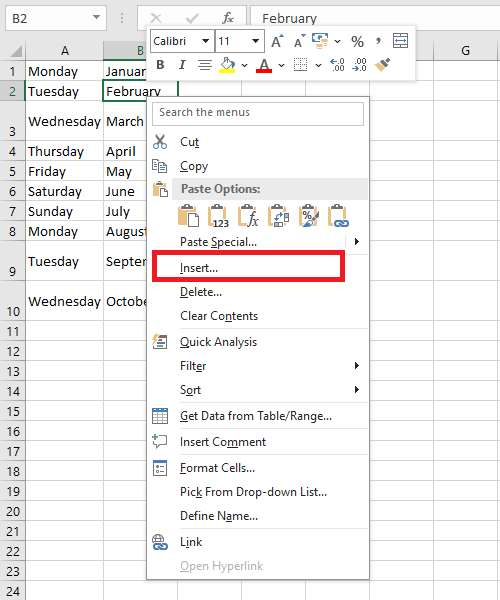
- The Insert dialog box opens. Select either:
- Shift cells right to move the cells in the same row to the right.
- Shift cells down to move the selected cells and all cells below in the column downward.
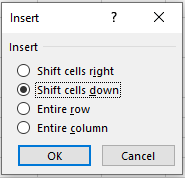
- Choose an option, then click OK.
- Your result appears in the worksheet.
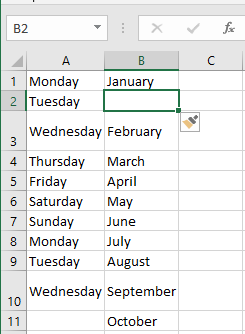
Note: You can also use the Insert dialog box to insert or delete entire rows and columns.
Deleting Cells
To delete a cell from the worksheet:
- Right-click and choose Delete.
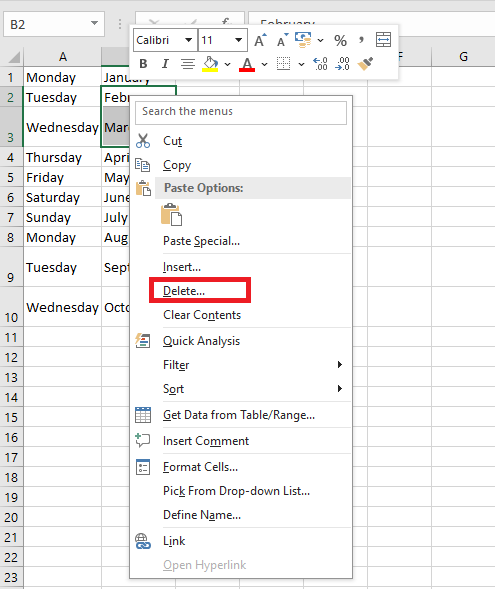
- The Delete dialog box opens. Select either:
- Shift cells left to move the cells in the same row to the left.
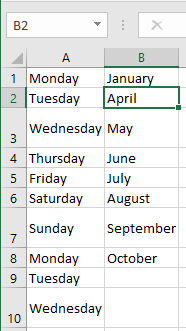
- Shift cells up to move the selected cells and all cells below upward.
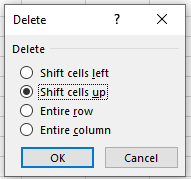
- Choose an option, then click OK.
- Your result is displayed in your worksheet.
NOTE
You can also Insert or Delete a cell from the Cells group items on the Home tab.
Deleting the Contents of a Cell Range
Deleting a range actually removes the cells from the worksheet.
NOTE
You can also insert or delete a cell using the Cells group on the Home tab.
However, if you want the cells to remain but want to remove their contents or formatting, you can use Excel’s Clear command, as described in the following steps:
- Select the range you want to clear.
- Select Home > Clear. Excel displays a submenu with clear options.
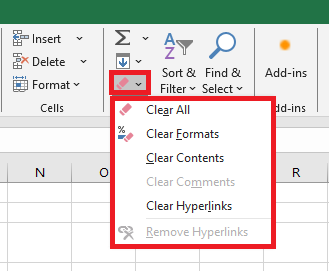
- Select Clear All, Clear Formats, Clear Contents, Clear Comments, or Clear Hyperlinks, as appropriate.
To clear values and formulas from a range using the fill handle, you can use either of the following two methods:
- If you want to clear only the values and formulas from a range, select the range, then click and drag the fill handle across the range and over the cells you want to clear. Excel shades the cells as you select them. When you release the mouse button, Excel clears the values and formulas from the cells.
- If you want to clear everything in the range — such as values, formulas, formats, and comments — select the range, then hold down the Ctrl key. Next, click and drag the fill handle across the range and over each cell you want to clear. Excel clears the cells when you release the mouse button.