
Adding a Total Row to Your Excel Table
Once your dataset has been converted into an Excel Table, adding a Total Row becomes a simple and powerful feature that enhances your data analysis. There are two main methods to add a Total Row:
Method 1: Using the Ribbon
-
Click anywhere inside your Excel Table.
-
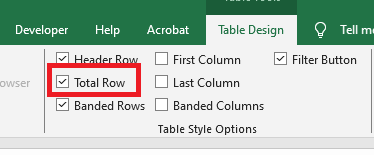
Go to the Table Design tab on the Ribbon (also called Design in some versions).
-
In the Table Style Options group, check the box labeled Total Row.
You will now see a new row added at the bottom of your table, displaying the total for the last column by default.
Method 2: Using the Right-Click Menu
-
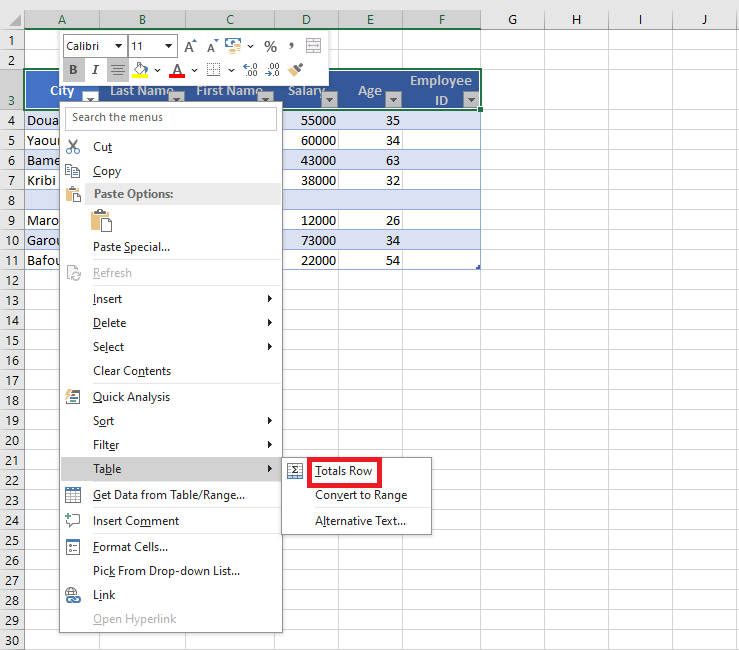
Right-click any cell within your Excel Table.
-
Hover over Table in the context menu.
-
Click Total Row from the submenu.
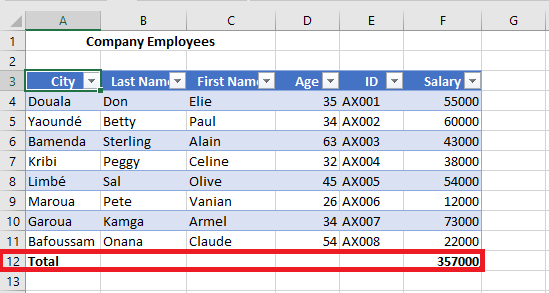
Whichever method you use, Excel will insert a Total Row at the bottom of the table. By default, it will apply the SUM function to the last column, but this can easily be changed.
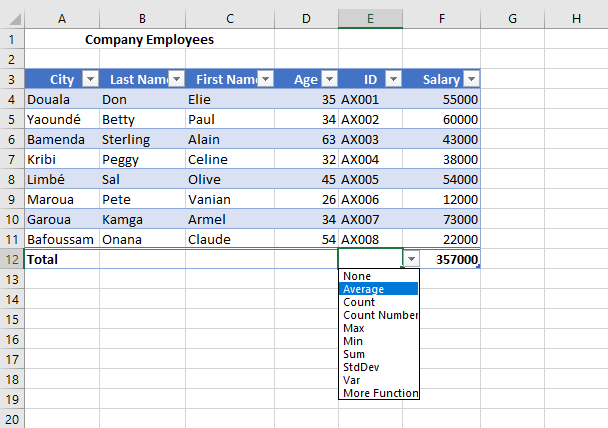
Once the Total Row appears, you can customize each cell in that row. Simply click any cell in the Total Row and a drop-down arrow will appear. This drop-down gives you a variety of aggregation functions to choose from.
Using Other Aggregation Functions in the Total Row
The Total Row is not limited to just sums. It can also display other summary statistics such as:
-
Average
-
Minimum (Min)
-
Maximum (Max)
-
Count
-
Standard Deviation
-
Or even a custom formula of your choice.
For example, if you want to display the average age from an « Age » column:
-
Click the cell in the Total Row that corresponds to the Age column.
-
Click the drop-down arrow that appears.
-
Choose Average from the list.
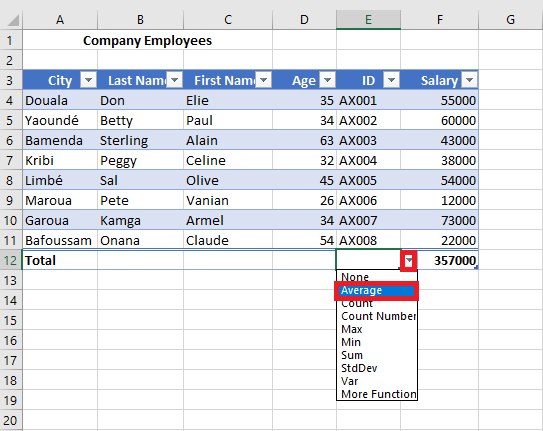
The cell will now display the average of all values in the Age column.
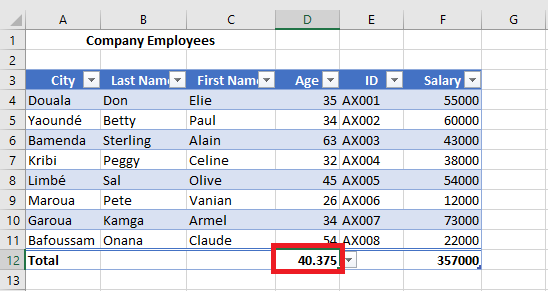
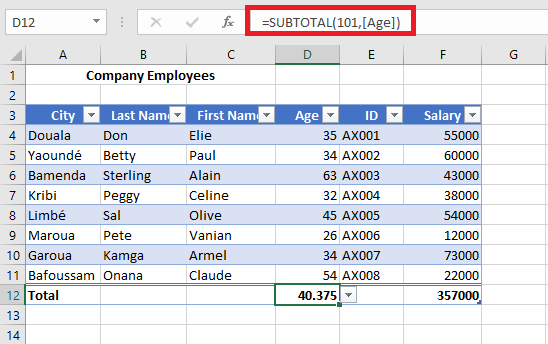
Most of these calculations use the SUBTOTAL function, which you can observe in the formula bar. The advantage of using SUBTOTAL is that it automatically adjusts when you filter your table — it calculates only the visible (filtered) values.
If the predefined list does not offer the function you need, you can insert a different one manually:
-
Click the cell in the Total Row for the desired column.
-
Click the drop-down arrow.
-
Select More Functions at the bottom of the list.
- The Insert Function dialog box will appear, allowing you to choose from any Excel function.
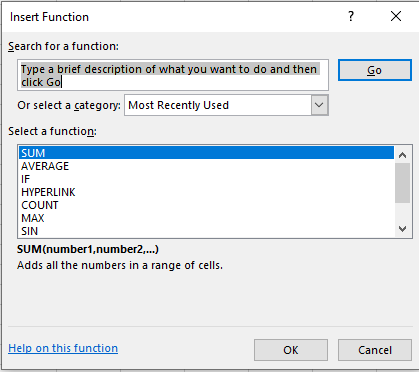
This flexibility allows you to perform customized summaries directly within your table, making the Total Row a valuable tool for quick insights.