
You can check for compatibility between different versions of your Microsoft Office files to see whether the features in a file are supported in earlier versions of Office using the Compatibility Checker.
To check compatibility with an earlier version of Office:
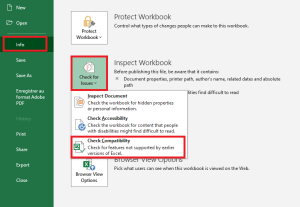
- Click the File tab, then select Info.
- Click Check for Issues, then Check Compatibility.
Selecting Check Compatibility when saving documents in the Compatibility Checker window prompts the Office application to automatically verify compatibility issues when saving your file in an earlier version format.
Important:
■ Before saving an Excel 2007 or later workbook in an earlier file format, you must fix any issues that could result in significant loss of functionality in order to prevent permanent data loss or incorrect behavior. Excel’s Compatibility Checker can help identify potential problems.
■ Issues that cause minor fidelity loss may or may not be addressed before proceeding with the file save. These do not result in data or feature loss, but the file may look or behave differently when opened in an earlier version of Microsoft Excel.
The Compatibility Checker automatically launches when you attempt to save a file in the Excel 97-2003 .xls format. If potential issues do not concern you, you can disable compatibility checking.
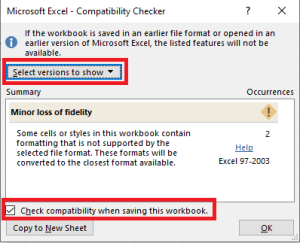
If you have upgraded to a new version of Excel and realize you will be sharing workbooks with people who haven’t yet upgraded, running the Compatibility Checker helps you identify features or content that may not be supported in older versions, allowing you to address these issues before sharing your workbook. Save the file in .xls format and review any issues detected by the Compatibility Checker.
Proceed as follows:
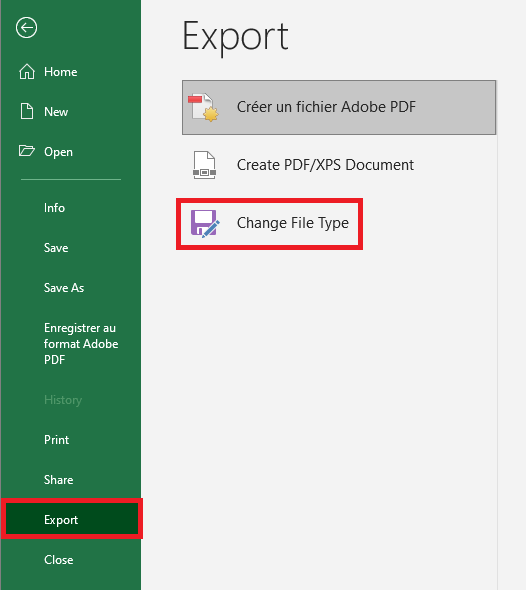
- Click File > Export > Change File Type.
- Under Workbook File Types, double-click Excel 97-2003 Workbook (*.xls).
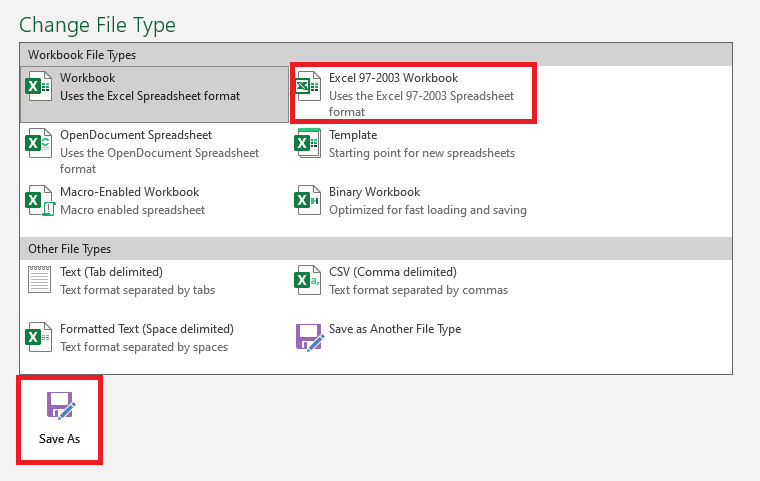
- In the pop-up Save As window, choose a folder location for the workbook.
- In the File Name box, type a new file name (or use the existing one).
- Click Save.
- If the Compatibility Checker appears, review the compatibility issues that were found.
Figure 1.5.8-c: Accessibility Issues
The Find link lets you jump to the relevant location in your worksheet, and the Help link provides more information on the issue and possible solutions.
Notes:
■ In your newer version of Excel, any file opened in .xls format opens in Compatibility Mode. Continue working in this mode if you intend to send the workbook repeatedly to people using an older version of Excel.
■ When backward compatibility is no longer needed, click File > Info > Convert to upgrade the workbook to the current file format and take advantage of new Excel features.