
Excel offers several features that help ensure your workbooks appear and function as intended before distributing them to others. It provides many options to help you prepare a workbook for sharing.
Inspect a Workbook
Check the workbook for hidden information such as personal details, custom XML data, and other concealed or embedded information. This hidden data may reveal details about your organization or the workbook itself that you might not want to share publicly. You can remove this hidden information before sharing the workbook with others.
-
Click the File tab.
-
Click Info.
-
Click Check for Issues.
-
Click Inspect Document.

- Click Yes.

There are various elements you can check in your workbook. Browse through the list and identify the hidden content you want to inspect.
-
Check the boxes for the items you wish to inspect.
-
Click Inspect.
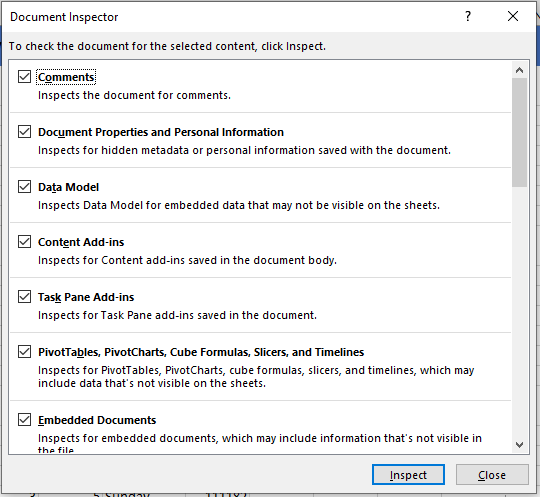
-
Click Remove All next to the items you want to delete.
-
Click Close.
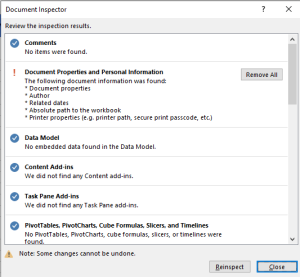 Z
Z
The hidden data is now removed from the workbook and will not be visible to others.
Protect Your Workbook
By default, anyone with access to your workbook can open, copy, and edit its contents unless you protect it. There are several ways to protect a workbook, depending on your needs.
To protect your workbook:
-
Click the File tab to access Backstage view.
-
In the Info pane, click the Protect Workbook command.
-
From the drop-down menu, choose the option that best suits your needs.
In our example, we’ll select Mark as Final.
Marking your workbook as final is a good way to discourage others from editing it, while other options provide even more control if necessary.
-
A dialog box will appear prompting you to save. Click OK.
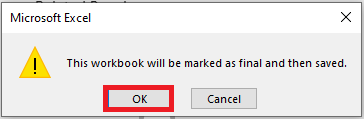
-
Another dialog box will appear. Click OK.
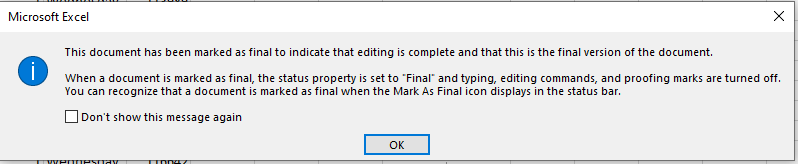
-
The workbook will now be marked as final.

Note: Marking a workbook as final does not prevent others from editing it. If you want to prevent modifications, you can use the Restrict Access option instead.