
A list box allows the user to select an item from a list. A combo box (as discussed in this section) combines a list box and a text box, enabling the user to either select from the list or enter text manually.
If you set the combo box’s Style property to 2 (which corresponds to fmStyleDropDownList), it behaves like a standard Windows list box with a simple dropdown arrow to expand the list.
Both the scroll bar (ScrollBar) and the spin button (SpinButton) controls serve to adjust numeric values within a defined range. Their functionality is similar, but scroll bars offer a more visible and comfortable interface.
The key event for all these controls is the Change event, which triggers when the selection or value is changed.
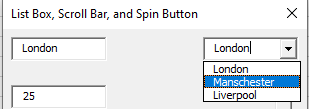
In the following example from the UserForm module frmListe, the three mentioned controls are demonstrated side-by-side with corresponding text boxes that display the current selected or set value, as shown in Figure 10.15.

All three text boxes have their Locked property set to True, preventing direct user input and ensuring they can only be changed programmatically. For better visual distinction, the background color (BackColor) of these text boxes is set to gray.
Program code for the dialog:
Private Sub UserForm_Initialize()
    cmbStadt.AddItem "Berlin"
    cmbStadt.AddItem "Hamburg"
    cmbStadt.AddItem "Munich"
    cmbStadt.ListIndex = 0
End Sub
Private Sub cmbStadt_Change()
    txtStadt.Text = cmbStadt.Text
End Sub
Private Sub scrZahl1_Change()
    txtZahl1.Text = scrZahl1.Value
End Sub
Private Sub spnZahl2_Change()
    txtZahl2.Text = spnZahl2.Value
End Sub
Private Sub cmdEnde_Click()
    Unload Me
End Sub
Explanation of the combo box cmbStadt:
The Style property of the combo box is manually set at design time to 2 (fmStyleDropDownList) in the Properties window, which makes it look like a standard dropdown list with a simple arrow.
When the dialog box initializes, the combo box is populated with entries using the method .AddItem().
Entries in a list box or combo box are zero-based indexed. You can access a specific entry via the .List(Index) property.
The first entry is selected by setting .ListIndex = 0. This property always reflects the current selection’s zero-based index.
When the Change event fires, the associated event procedure runs.
The .Text property always contains the text of the current selection in the combo box. This value is assigned to the linked text box.
Explanation of the scroll bar scrNumber1:
The scroll bar is oriented horizontally to allow setting values between 1 and 100, initially positioned at 50.
- Clicking the small arrow buttons changes the value by 1 (SmallChange property).
- Clicking the bar area between the arrows changes the value by 10 (LargeChange property).
At design time, the following properties are set:
- Orientation = 1 (fmOrientationHorizontal)
- Min = 1
- Max = 100
- Value = 50
- SmallChange = 1
- LargeChange = 10
When the Change event occurs, the corresponding event procedure runs, updating the linked text box’s value.
The .Value property always reflects the current value of the scroll bar.
Explanation of the spin button scrNumber2 :
Properties and event procedures for the spin button are set similarly to the scroll bar.
However, the spin button only has a SmallChange property (no LargeChange) because of its different user interface.
It is oriented vertically with the property:
- Orientation = 0 (fmOrientationVertical)