
Excel allows you to merge cells, columns, and rows to combine numbers, text, or other data to effectively organize your information. Merging cells helps structure your data, making it easier to read and understand.
To merge a cell in Excel, use the drop-down list located in the Alignment group on the Home tab, as shown in the figure below.
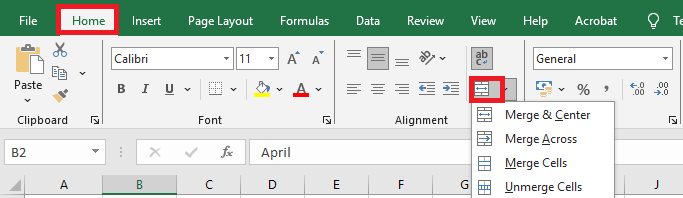
The merge drop-down list contains various merge options that allow you to combine multiple cells into a single one.
The different options in the Merge & Center drop-down list are explained as follows:
- Merge & Center: This merges the selected cells and centers the data string in the new merged cell. During the merge, only the content of the leftmost cell is preserved; the contents of the other merged cells are deleted.
- Merge Across: This merges the selected cells in each row individually (across columns). It keeps only the content of the leftmost cell in each row.
- Merge Cells: This merges all the selected cells into a single cell. The selected range can be horizontal, vertical, or both. Only the content of the upper-left cell is retained.
- Unmerge Cells: This reverses the merge operation, splitting the merged cells back into individual cells.
NOTE:
The difference between Merge & Center and Merge Cells lies in the alignment: the former centers the content, the latter does not.
One of the main reasons to merge multiple cells is to create a title row in your worksheet.
To merge and center multiple cells:
- Select all the cells you want to merge and center so they span the width of your data table.
- Then, go to the Home tab, click on the Merge & Center drop-down, and select the first option: Merge & Center.
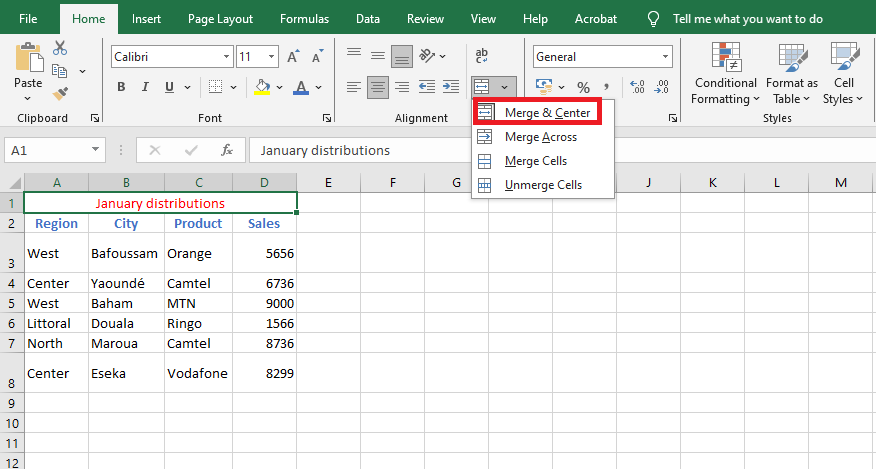
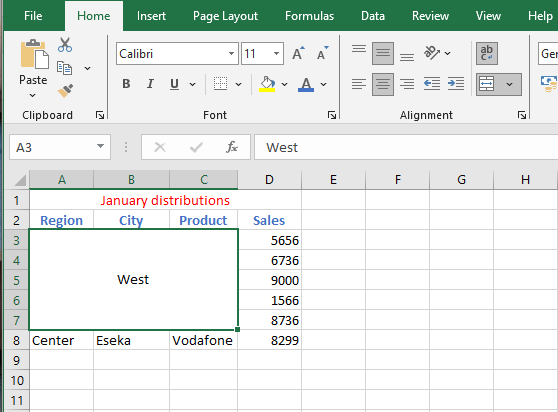
As shown, all your cells are merged, and the heading “January Distributions” is centered at the top of the table. You can also merge cells vertically.
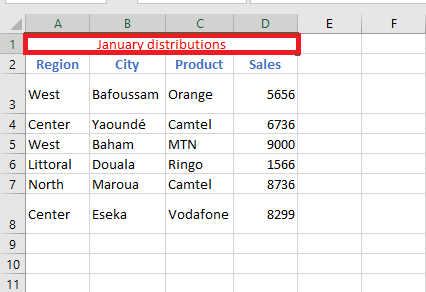
If you try to merge multiple rows, multiple columns, or both rows and columns, only the content from the top-left cell of the selection will be kept; all others will be discarded.
To merge several rows and columns:
- Select the cells, open the Merge & Center drop-down menu, then click on the Merge & Center option.
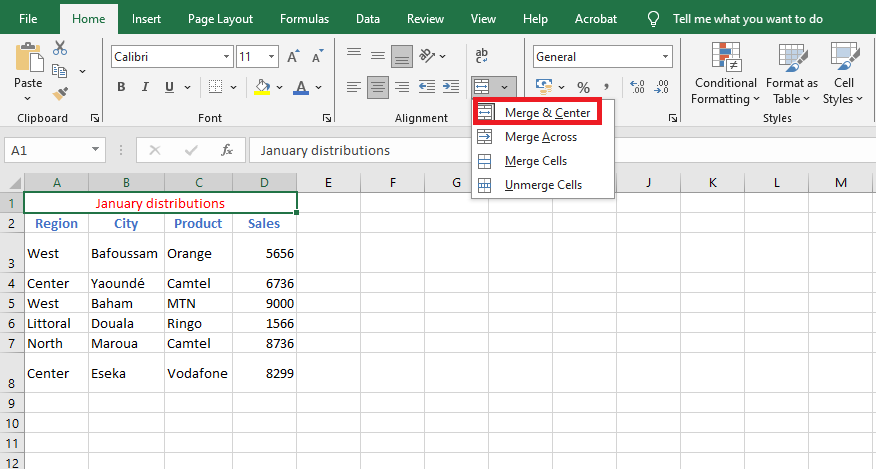
All the selected cells will then be merged into a single cell, and the value from the top-left cell will be centered in the resulting merged cell.
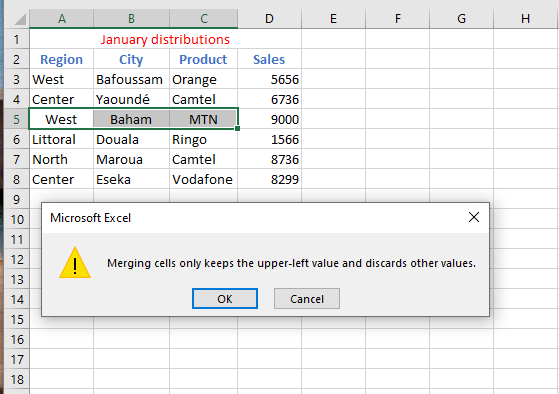
If you select multiple columns and choose Merge Cells from the Merge & Center menu, all values except those in the leftmost cells will be lost. Excel will display a warning before proceeding.
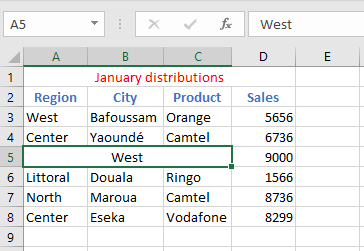
As you can see, all the columns are now combined into a single cell, without centering the text.
The second option in the drop-down list, Merge Across, works similarly to the third option, Merge Cells, but it merges the selected cells in each row separately. This only works on horizontal (row-wise) cell selections.