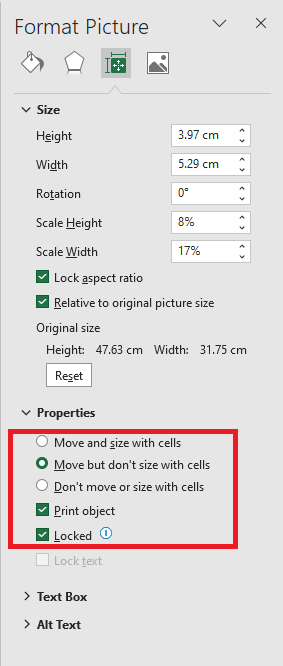
Charts and objects inserted into your workbooks have properties that you can update to control their behavior.
You can also add alternative text so that your worksheet is accessible to people who have difficulty reading text and graphics on screen.
Once an object is inserted, you can adjust its properties to control how it moves and resizes, whether it prints, and whether it is locked.
Steps to modify an object’s properties:
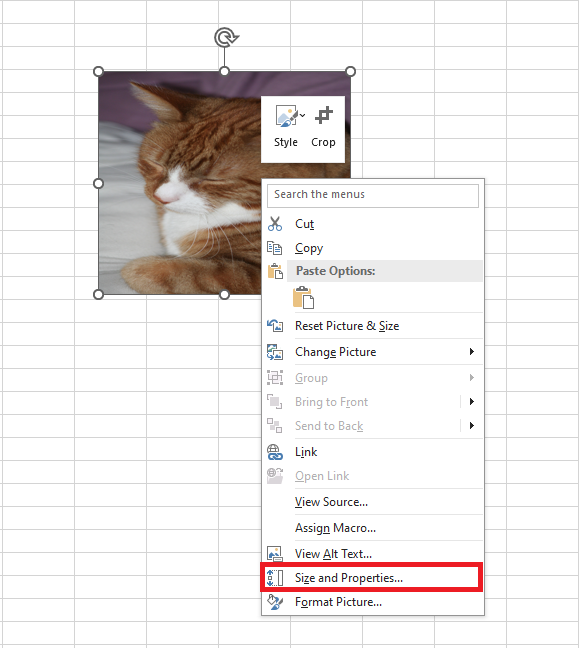
- Right-click on the image or object.
- Select Size and Properties. The Format Picture pane will appear on the right.
- Expand the Properties section.
- Choose a property option:
- Move and size with cells:
If you resize the surrounding cells, the object will move with them. If you resize the cells that the object overlaps, it will also stretch accordingly. - Move but don’t size with cells:
The object moves with the surrounding cells if they are resized, but it will not stretch. It keeps its original size unless manually resized from the Format tab. - Don’t move or size with cells:
The object retains the same size and position even if the surrounding cells are resized.