
The OptionButton control (radio button) allows you to select one from several mutually exclusive alternatives.
Option buttons are usually displayed in groups according to the alternatives available. Grouping is carried out using a Frame control or the GroupName property of the OptionButton object.
The main events of an option button are the Click and Change events, and its main property is the Value property, which returns or sets its state.
If the property value equals True, the option button is selected; if False, it is cleared.
Option button and choosing the resulting operation
As an example of using option buttons, let’s slightly modify the project from the section “Addition of two numbers” earlier in this chapter.
Now, instead of calculating the sum, we will determine the result of the selected operation: addition or subtraction.
The operation to be performed is set by choosing the corresponding option button.
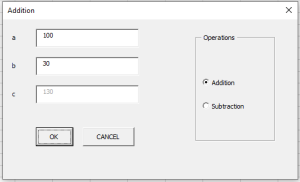
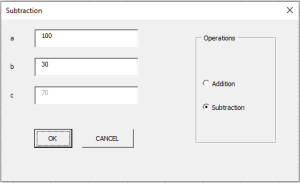
So, create a form that contains three labels, three text boxes, and a button, as well as a frame, which will serve as a container for two option buttons.
Then, using the Properties window, assign the property values shown in Table3.
Table. Property values set in the Properties window
| Object | Property | Value |
| Label | Caption | a |
| TextBox | Name | txtA |
| Label | Caption | b |
| TextBox | Name | txtB |
| Label | Caption | c |
| TextBox | Name | txtC |
| Button | Name | cmdOK |
| Caption | OK | |
| Button | Name | cmdCancel |
| Caption | Cancel | |
| Frame | Caption | Operations |
| OptionButton | Name | optAdd |
| Caption | Addition | |
| OptionButton | Name | optSub |
| Caption | Subtraction |
In the form module, type the code.
In the Click event procedure of the button, the selected option button is identified, and the calculation is carried out using the corresponding formula.
The Click event procedures of the option buttons display the name of the selected operation in the form’s title bar.