
Copy-pasting in Excel is easy. But did you know that in addition to pasting an entire cell, you can also paste only a specific attribute such as a value, a formula, formatting, or a comment? That’s where Paste Special comes in.
Excel Paste Special makes the paste operation more flexible by allowing you to choose whether to keep the formatting (from the source or the destination), or to strip all formatting and paste only values or formulas.
What is Paste Special?
In situations where a standard copy/paste is not appropriate, Excel’s Paste Special offers a wide range of options to paste only specific elements from the copied cells, or to perform a mathematical operation with the copied data.
For example, you can copy data containing formulas and paste only the calculated values into the same or different cells. You can also copy a column’s width and apply it to other columns in your dataset. Or, you can transpose the copied range, meaning you convert rows into columns and vice versa.
The following screenshot shows all available Paste Special options:
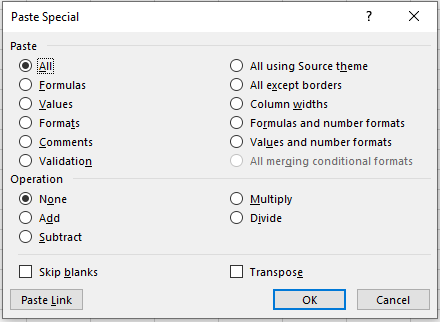
All Paste Special commands work within the same worksheet, across different sheets, and even between different workbooks.
Using Paste Special in Excel boils down to the following steps:
- Copy the source cell or range of cells (the fastest way is to select the cell(s) and press the Ctrl + C shortcut).
- Select the destination cell(s).
- Open the Paste Special dialog box using one of the methods described below (the fastest way is to use the Paste Special shortcut).
- Select the desired paste option and click OK, or press the Enter key.
Ways to Access Paste Special in Excel
As usual, Microsoft Excel offers multiple ways to use the same feature, and Paste Special is no exception. You can access its functions via the ribbon, the context menu, or keyboard shortcuts.
Paste Special Command on the Ribbon
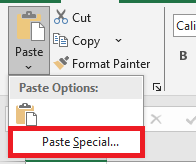
The most obvious way to open the Paste Special dialog box is to click on Paste → Paste Special from the Home tab, in the Clipboard group:
Paste Special in the Context Menu
You can also right-click on a cell where you want to paste the copied data, then click Paste Special from the context menu.
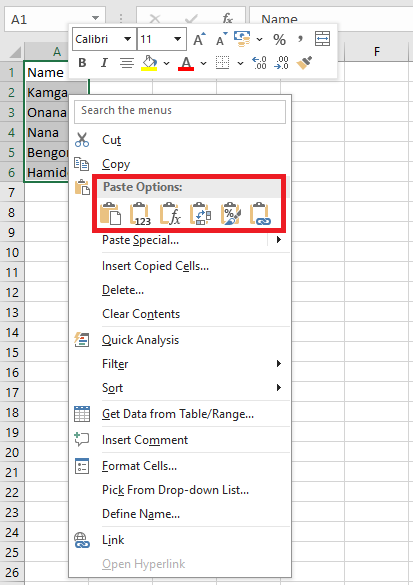
As you may have noticed, the six most popular paste options appear directly in the context menu under Paste Options: Paste All, Paste Values, Paste Formulas, Transpose, Paste Formatting, and Paste Link.
If you hover over the Paste Special… item in the context menu, a dropdown will appear offering 14 additional paste options:

Paste Special Keyboard Shortcut
The fastest way to paste a specific aspect of the copied data in Excel is to use one of the following shortcuts:
■ Paste Special shortcut for Excel 2019 – 2007: Ctrl + Alt + V
■ Paste Special shortcut for all versions of Excel: Alt + E, then S
Both of the shortcuts above open the Excel Paste Special dialog box, where you can either select an option using your mouse or press a corresponding shortcut key.