Using the SUM Function to Add a Range
The SUM function is used in Excel to add a range of cells, an entire column, or non-contiguous cells. As part of the Math & Trigonometry category, it is entered by typing “=SUM()” followed by the values to be added. The values provided to the function can be numbers, cell references, or ranges.
For example, cells B1, B2, and B3 contain 20, 44, and 67 respectively. The formula « =SUM(B1:B3) » adds the numbers in cells B1 to B3 and returns 131. The SUM formula automatically updates when a value is inserted or deleted. It also includes any changes made to an existing range of cells. Moreover, the function ignores empty cells and text values. The syntax is:
=SUM(number1, [number2], [number3], …)
The SUM function uses the following arguments:
■ Number1 (required) – This is the first item you want to add.
■ Number2 (required) – The second item you want to add.
■ Number3 (optional) – The third item you want to add.
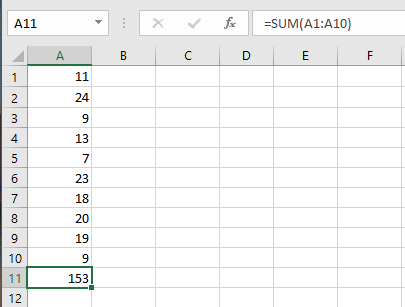
In this example, all values in a range on a worksheet need to be added, with the total displayed in cell A11. To do this, use the SUM function, which returns the sum of all numbers in a range of cells.
To sum a range:
- In cells A2:A10, enter any value between 1 and 100.
- In cell A11, type the following formula:
=SUM(A2:A10) - Press Enter.
Using the SUM Function to Add Multiple Ranges
NOTE:
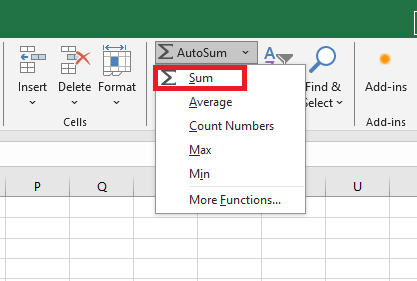
To perform this task more quickly, simply select cell A11 and click the Σ (AutoSum) icon in the editing bar under the Home tab. Then press Enter to display the result.
To add multiple ranges, just refer to each one, separated by semicolons, using the SUM function.
To add multiple ranges:
- In cells A2:A10, enter amounts ranging from 1 to 100.
- Select cells B2:B10 and type the formula
=A2*8%to calculate the tax amount. - Press Ctrl+Enter.
- In cells D2:D10, enter discount values from –1 to –3.
- In cell B12, add the three columns using the following function:
=SUM(A2:A10, B2:B10, D2:D10) - Press Enter.
Summing an Entire Column
You can also use the SUM function in Excel to add an entire column.

NOTE:
To place a border around all cells used in the function, select cell B12 and press F2. The function will also be displayed.
You can also use the SUM function in Excel to add an entire row. For example, =SUM(5:5) adds all the values in row 5.
Summing Non-Contiguous Cells
You can also use the SUM function in Excel to add non-contiguous cells. Non-contiguous means they are not adjacent to each other.
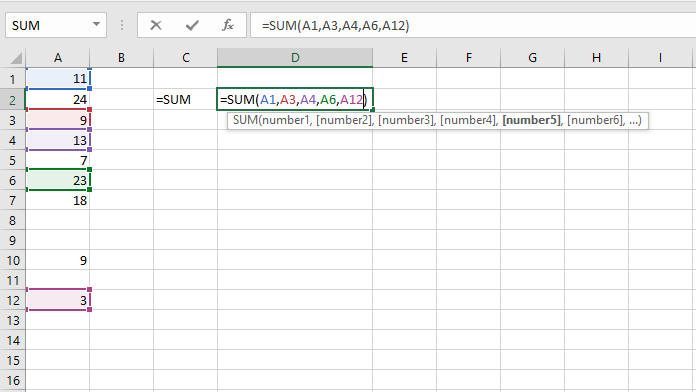
Note: =A2+A4+A5+A7+A13 produces exactly the same result!
AutoSum
Use AutoSum or press ALT + = to quickly sum a column or row of numbers.
- First, select the cell below the column of numbers (or next to the row of numbers) you want to sum.
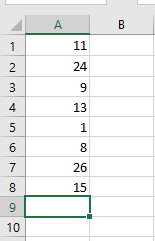
- Under the Home tab, in the Editing group, click AutoSum (or press ALT + =).
- Press Enter.